> ## Documentation Index
> Fetch the complete documentation index at: https://greatquestion.co/support/llms.txt
> Use this file to discover all available pages before exploring further.
# How to Send Incentives
> Deliver participant rewards automatically or manually, share redemption links, send one-off incentives, and generate an invoice.
Once a participant completes your study, you can send their incentive automatically or manually. This guide covers both, plus how to find a participant's redemption link, send a one-off incentive, and generate an invoice.
## Automatic delivery
For moderated studies, you can have incentives sent automatically after a session.
1. Publish your study and open **Settings**.
2. Go to the **Automation** tab.
3. Enable automatic incentive sending.
The reward is then sent on a **24-hour** interval after the session. The Automation tab has a few other toggles depending on your study (invite and booking reminders, for example), but this is the only one that sends an incentive.
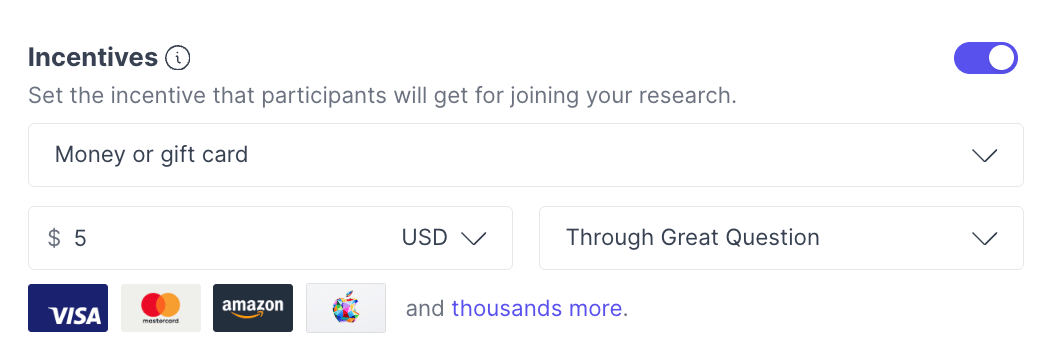 Automatic delivery is available for moderated studies. For every other study type, send incentives manually using the steps below.
## Manual delivery
You can send an incentive to any participant by hand once you've reviewed their participation.
1. In the participant table, mark the participant as **Completed**.
2. Review the quality of their participation.
3. Select the participant, then click **Compose > Send thanks**.
4. Review the email content, then send.
To send to several participants at once, select multiple rows and use the same **Compose > Send thanks** option.
## Finding a participant's redemption link
If a participant can't redeem their reward, you can find and share their link directly.
1. Open the study and click the participant's name.
2. Scroll to the **Messages** section and open the **Thanks** email.
3. Copy the redemption link. It has the format `https://greatquestion.co/go/[16-character code]`.
4. Share the link with the participant so they can claim their reward.
This link takes the participant to their Great Question participation page, where completing the redemption step hands them off to Tremendous (or the selected payout method) to pick their actual payout.
For participants recruited through **User Interviews**, incentives are managed by User Interviews. Advise those participants to contact User Interviews directly.
## Sending a one-off incentive
Admins can send an incentive to an internal candidate outside a study's normal completion flow, for example, to thank someone for their time separately. The incentive is still recorded against a study, so you'll pick an existing study or create one on the spot.
1. Go to the **Incentives** page.
2. Click **New Incentive**.
3. Choose the candidate and a study (or create a new study), set the amount and type, and send.
## Generating an invoice
Admins on Enterprise plans can generate an invoice from either the **Wallets** page or the **Incentives** page, under **Manage wallet > Create invoice**. The invoice is sent automatically to the account owner or admin for payment.
***
**Still need help?** Contact us at [support@greatquestion.co](mailto:support@greatquestion.co) — median response time is 19 minutes during [support hours](https://greatquestion.co/features/about-our-support-team).
Automatic delivery is available for moderated studies. For every other study type, send incentives manually using the steps below.
## Manual delivery
You can send an incentive to any participant by hand once you've reviewed their participation.
1. In the participant table, mark the participant as **Completed**.
2. Review the quality of their participation.
3. Select the participant, then click **Compose > Send thanks**.
4. Review the email content, then send.
To send to several participants at once, select multiple rows and use the same **Compose > Send thanks** option.
## Finding a participant's redemption link
If a participant can't redeem their reward, you can find and share their link directly.
1. Open the study and click the participant's name.
2. Scroll to the **Messages** section and open the **Thanks** email.
3. Copy the redemption link. It has the format `https://greatquestion.co/go/[16-character code]`.
4. Share the link with the participant so they can claim their reward.
This link takes the participant to their Great Question participation page, where completing the redemption step hands them off to Tremendous (or the selected payout method) to pick their actual payout.
For participants recruited through **User Interviews**, incentives are managed by User Interviews. Advise those participants to contact User Interviews directly.
## Sending a one-off incentive
Admins can send an incentive to an internal candidate outside a study's normal completion flow, for example, to thank someone for their time separately. The incentive is still recorded against a study, so you'll pick an existing study or create one on the spot.
1. Go to the **Incentives** page.
2. Click **New Incentive**.
3. Choose the candidate and a study (or create a new study), set the amount and type, and send.
## Generating an invoice
Admins on Enterprise plans can generate an invoice from either the **Wallets** page or the **Incentives** page, under **Manage wallet > Create invoice**. The invoice is sent automatically to the account owner or admin for payment.
***
**Still need help?** Contact us at [support@greatquestion.co](mailto:support@greatquestion.co) — median response time is 19 minutes during [support hours](https://greatquestion.co/features/about-our-support-team).