> ## Documentation Index
> Fetch the complete documentation index at: https://greatquestion.co/support/llms.txt
> Use this file to discover all available pages before exploring further.
# Google Integrations
> Connect Google Workspace for calendar and email, and enable Google SSO for sign-in.
Great Question offers two separate Google integrations: **Google Workspace** and **Google SSO**.
## What the Google Workspace integration does
The Google Workspace integration connects Great Question to Google Calendar and Gmail, enabling you to:
* Sync your Google Calendar in real time for scheduling interviews.
* Send study-related emails through your Gmail account.
* Show your true availability so participants can't double-book you.
**Why it matters:**
* Prevents scheduling conflicts by using real calendar availability.
* Improves email deliverability by sending from your own domain.
* Centralizes confirmations and reminders.
## What Google SSO does
Google Single Sign-On lets team members access Great Question using their Google login.
**Why it matters:**
* Faster onboarding, no new passwords to manage.
* Authentication is handled by Google.
* Consistent access control across Google-managed identities.
## Set up the Google Workspace integration
1. Open **Settings**, click your name in the top-left corner.
2. Select **Integrations** from the left-hand menu.
3. Find **Google Workspace** and click **Connect +**.
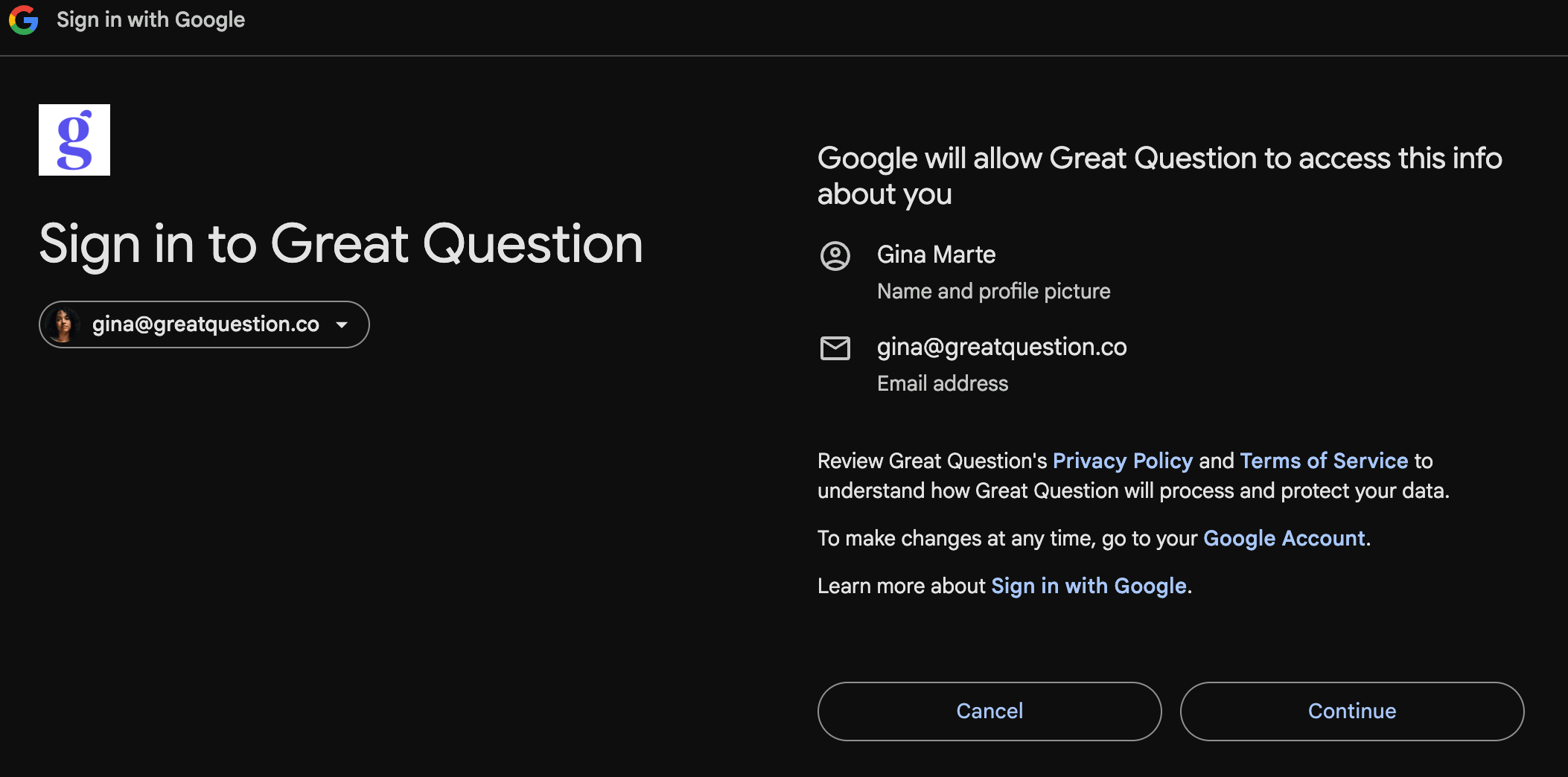
 4. Enter your Google credentials when prompted.
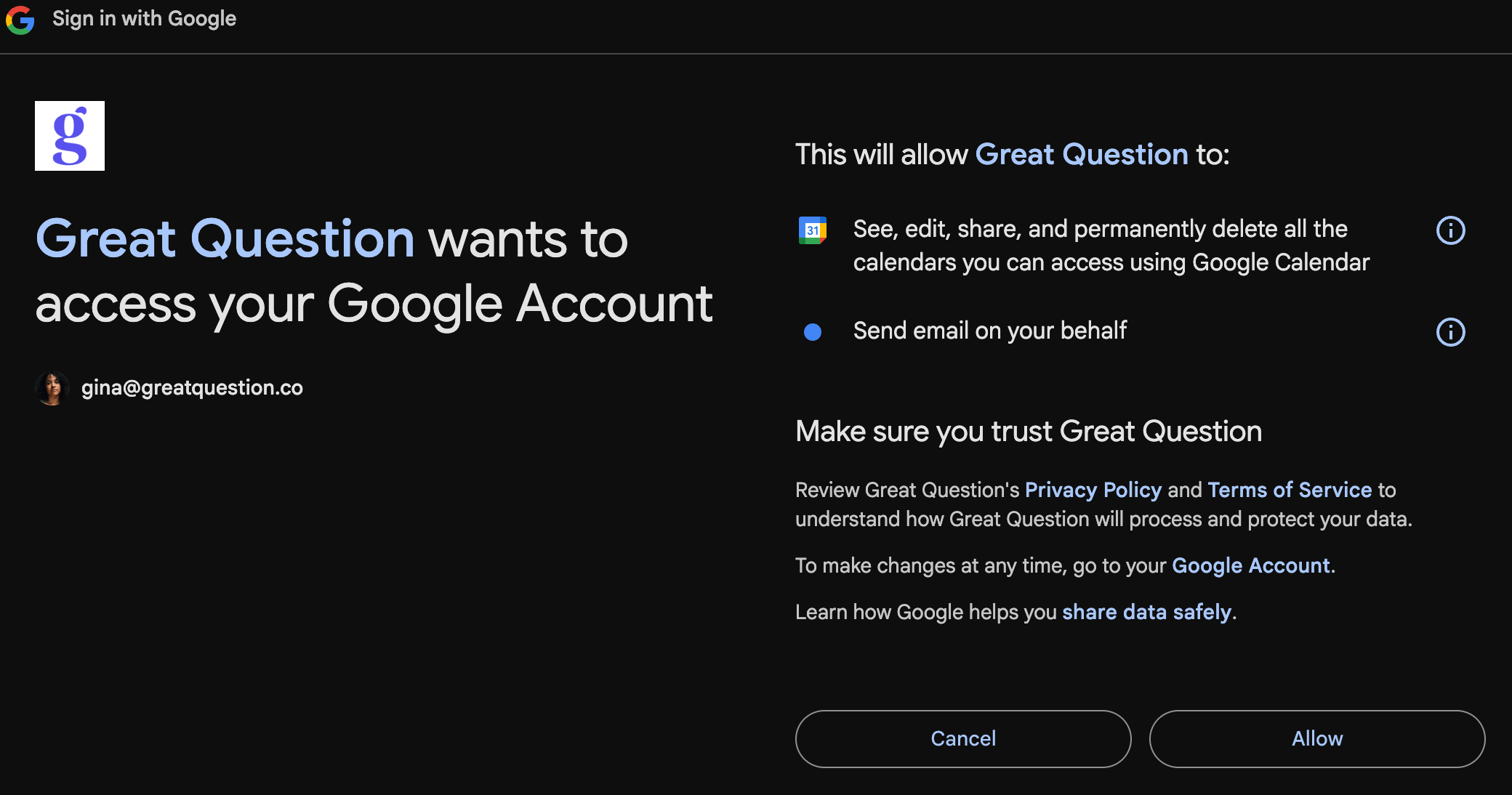
5. Approve all permission checkboxes and click **Allow**.
4. Enter your Google credentials when prompted.
5. Approve all permission checkboxes and click **Allow**.
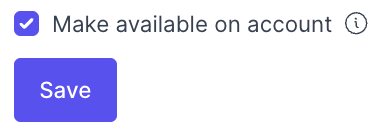
 6. (Optional) Toggle **Make available on account** to share email-sending access with that integrated email address with other users on the account.
 All requested permissions must be approved for the Google Workspace integration to work. If any are skipped, reconnect and approve every permission.
## Set up Google SSO
1. Go to **Settings → Governance → Security**.
2. Find **Authentication methods** and enable **Google**.
3. Return to **Settings → Integrations**.
4. Find **Google SSO** and click **Connect +**.
All requested permissions must be approved for the Google Workspace integration to work. If any are skipped, reconnect and approve every permission.
## Set up Google SSO
1. Go to **Settings → Governance → Security**.
2. Find **Authentication methods** and enable **Google**.
3. Return to **Settings → Integrations**.
4. Find **Google SSO** and click **Connect +**.
 5. Follow the authentication prompts.
Users will then see a **Sign in with Google** button on the login page.
## Important notes
* Google Workspace and the Microsoft integration **cannot** be integrated at the same time, it must be one or the other.
## Troubleshooting
| Issue | Problem | Solution |
| ---------------------- | ----------------------------------------------- | ------------------------------------------------------------------------------------------------------------------------------ |
| Integration fails | Permissions not fully approved | Ensure all permissions are granted, then reconnect Google Workspace |
| Emails not sending | Connection not shared, or domain blocks sending | Verify your domain allows third-party sending |
| Cannot log in with SSO | SSO not enabled, or email mismatch | Enable Google under **Settings → Governance → Security → Authentication methods**; confirm the email matches your organization |
***
**Still need help?** Contact us at [support@greatquestion.co](mailto:support@greatquestion.co) — median response time is 19 minutes during [support hours](https://greatquestion.co/features/about-our-support-team).
5. Follow the authentication prompts.
Users will then see a **Sign in with Google** button on the login page.
## Important notes
* Google Workspace and the Microsoft integration **cannot** be integrated at the same time, it must be one or the other.
## Troubleshooting
| Issue | Problem | Solution |
| ---------------------- | ----------------------------------------------- | ------------------------------------------------------------------------------------------------------------------------------ |
| Integration fails | Permissions not fully approved | Ensure all permissions are granted, then reconnect Google Workspace |
| Emails not sending | Connection not shared, or domain blocks sending | Verify your domain allows third-party sending |
| Cannot log in with SSO | SSO not enabled, or email mismatch | Enable Google under **Settings → Governance → Security → Authentication methods**; confirm the email matches your organization |
***
**Still need help?** Contact us at [support@greatquestion.co](mailto:support@greatquestion.co) — median response time is 19 minutes during [support hours](https://greatquestion.co/features/about-our-support-team).