> ## Documentation Index
> Fetch the complete documentation index at: https://greatquestion.co/support/llms.txt
> Use this file to discover all available pages before exploring further.
# Qualtrics Integration
> Run Qualtrics surveys through Great Question and keep all your response data in one place.
The Qualtrics integration lets you run your own Qualtrics surveys through Great Question while keeping response data centralized in your research repository. Qualtrics is one of several "bring your own survey link" options in Great Question, alongside Formsort, SurveyMonkey, and Google Forms — Qualtrics gets its own OAuth connection so you can pick surveys from a live list instead of pasting a raw link.
## Connect Qualtrics
Setting up the connection requires a few values from your Qualtrics account:
1. In Qualtrics, go to **Account Settings**.
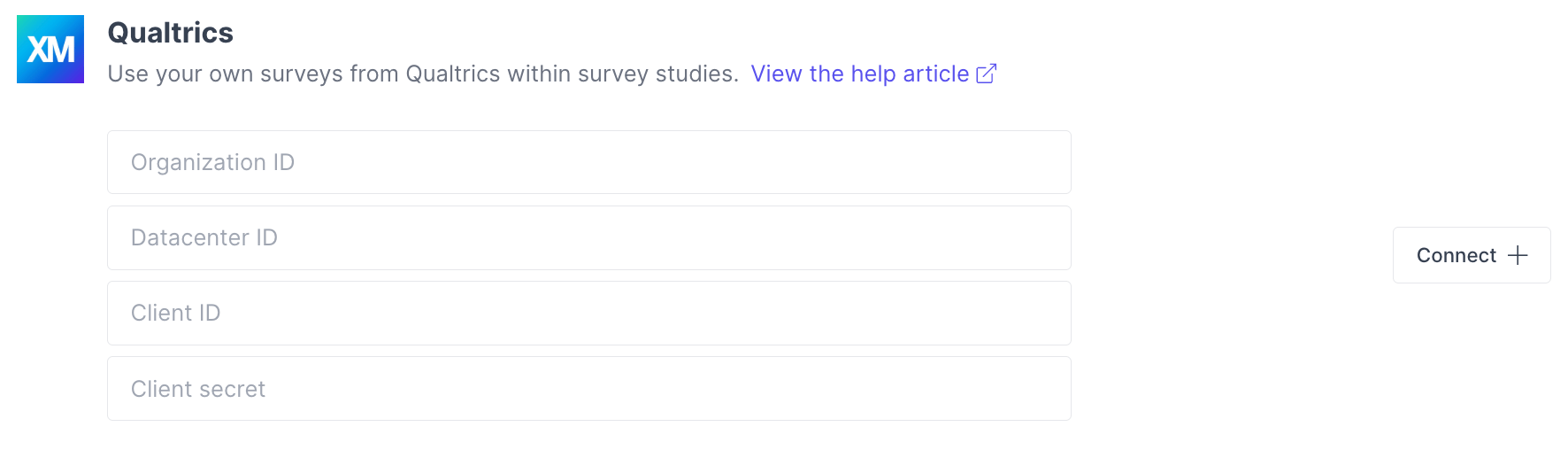
2. On the **IDs** tab, copy your **Organization ID** and **Datacenter ID**.
3. On the **OAuth Client Manager** tab, create a new client and copy its **Client ID** and **Client Secret**. Configure the client with:
[Qualtrics help article](https://api.qualtrics.com/6c02f17c3109f-o-auth-authentication-auth-code) for reference.
| Setting | Value |
| ------------ | -------------------------------------------------------- |
| Grant Type | Authorization Code |
| Scopes | `read:surveys` and `read:survey_responses` |
| Redirect URL | `https://greatquestion.co/users/auth/qualtrics/callback` |
4. In Great Question, open the **Integrations** page, enter these credentials, and click **Connect**.
 5. Authorize access when prompted.
## Create a survey study
1. **Create the study** — name it and, optionally, assign a different study owner using the collaborator option.
2. **Configure the plan** — set a participant limit, configure incentives (optional), and choose your consent form preferences. You can also set custom attributes and language preferences.
3. **Select the survey** — enable **Use my own survey link**, select **Qualtrics** from the platform dropdown, then choose the target survey.
4. **Review** — confirm every detail shows a green checkmark, then click **Create**.
Your Qualtrics survey must include `gq_token` as an embedded data field so Great Question can match responses back to participants. Without it, the survey isn't selectable. Additionally, only surveys that have been updated in the past seven (7) days will be shown.
## After publishing
Once published, review incoming responses under the study's **Survey** and **Summary** tabs — Summary breaks down results into **Overall** and **Individual** views. You can also embed your Great Question candidate attributes into the Qualtrics survey link as URL parameters, so that data is available to your survey without asking participants again.
***
**Still need help?** Contact us at [support@greatquestion.co](mailto:support@greatquestion.co) — median response time is 19 minutes during [support hours](https://greatquestion.co/features/about-our-support-team).
5. Authorize access when prompted.
## Create a survey study
1. **Create the study** — name it and, optionally, assign a different study owner using the collaborator option.
2. **Configure the plan** — set a participant limit, configure incentives (optional), and choose your consent form preferences. You can also set custom attributes and language preferences.
3. **Select the survey** — enable **Use my own survey link**, select **Qualtrics** from the platform dropdown, then choose the target survey.
4. **Review** — confirm every detail shows a green checkmark, then click **Create**.
Your Qualtrics survey must include `gq_token` as an embedded data field so Great Question can match responses back to participants. Without it, the survey isn't selectable. Additionally, only surveys that have been updated in the past seven (7) days will be shown.
## After publishing
Once published, review incoming responses under the study's **Survey** and **Summary** tabs — Summary breaks down results into **Overall** and **Individual** views. You can also embed your Great Question candidate attributes into the Qualtrics survey link as URL parameters, so that data is available to your survey without asking participants again.
***
**Still need help?** Contact us at [support@greatquestion.co](mailto:support@greatquestion.co) — median response time is 19 minutes during [support hours](https://greatquestion.co/features/about-our-support-team).