> ## Documentation Index
> Fetch the complete documentation index at: https://greatquestion.co/support/llms.txt
> Use this file to discover all available pages before exploring further.
# Observer Rooms
> Let stakeholders watch live research sessions from a private Interview Room while an Observer Bot records the call to your repository automatically.
Observer Rooms let your team watch live research sessions without appearing on camera or interrupting the participant. A Great Question Observer Bot joins the video call, streams the session to a private **Interview Room**, and records everything to your repository automatically. Participants never see your observers.
## How it works
When you enable observation, the Observer Bot joins the video call on your behalf and relays the session to a private Interview Room that your observers watch from. The bot joins the call about two minutes before the scheduled start time, and the livestream runs on a short delay (up to about 20 seconds) to maintain quality. Participants are notified that the session is being recorded, but observers stay hidden from view.
Once the call ends, the same session becomes the permanent Interview Room record in your repository, the Observer Room is just the live view of it. See [Interview Rooms](/support/support/repository/interview-rooms) for what happens afterward.
## Setting up an Observer Room
Observer Rooms work with **Zoom**, **Google Meet**, **Microsoft Teams**, or **Webex**. A custom video link also works, but only if it's a Zoom or Webex URL, other custom links, and Great Question's own native video rooms, don't support observer livestreaming.
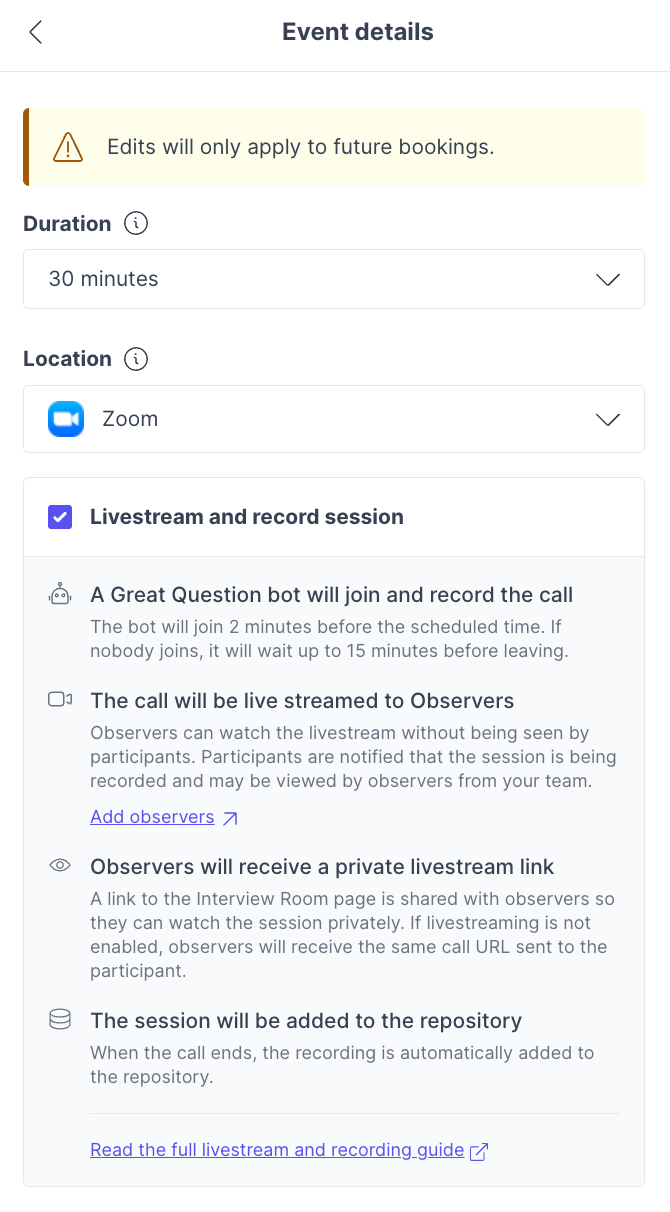
1. During Calendar setup for your study, enable **Livestream and record session**.
 2. Add your observers by name and email. They don't need a Great Question account, each one receives a private Interview Room link to watch from, separate from the invite sent to the moderator.
Observer livestreams aren't available for in-person locations or focus group studies.
If you're using Zoom, each moderator needs **Local Recording** enabled in their Zoom account settings, without it, Great Question can't livestream the session or pull in the recording afterward. Great Question will flag a moderator's Zoom account if this is missing before the session.
When enabled, the following happens automatically:
* The moderator receives **two** calendar invitations, one for the video call with the participant, and one linking to the Interview Room where the livestream will be viewable. This is expected behavior and cannot be consolidated into a single invite at this time.
* A **Great Question Observer Bot** joins the call 2 minutes before the scheduled time. If nobody joins, it waits up to 15 minutes before leaving.
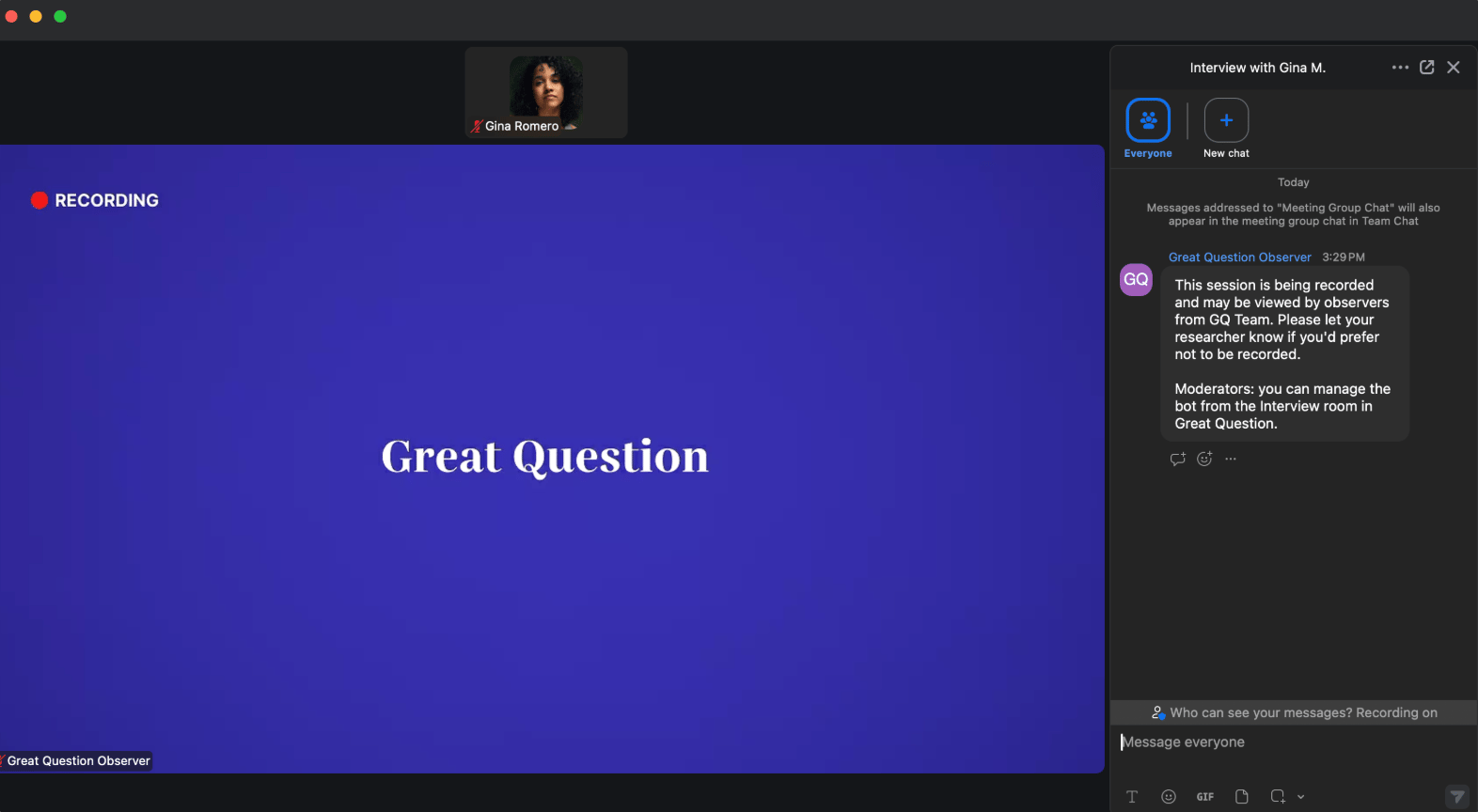
* The call is **livestreamed to observers** from the Interview Room. Participants are notified that the session is being recorded and may be viewed by observers from your team.
* Observers receive a **private Interview Room link** via calendar invite so they can watch privately. If livestreaming is not enabled, observers receive the same call URL sent to the participant instead.
* The session is **automatically added to the repository** when the call ends.
### Livestream Settings Per Session
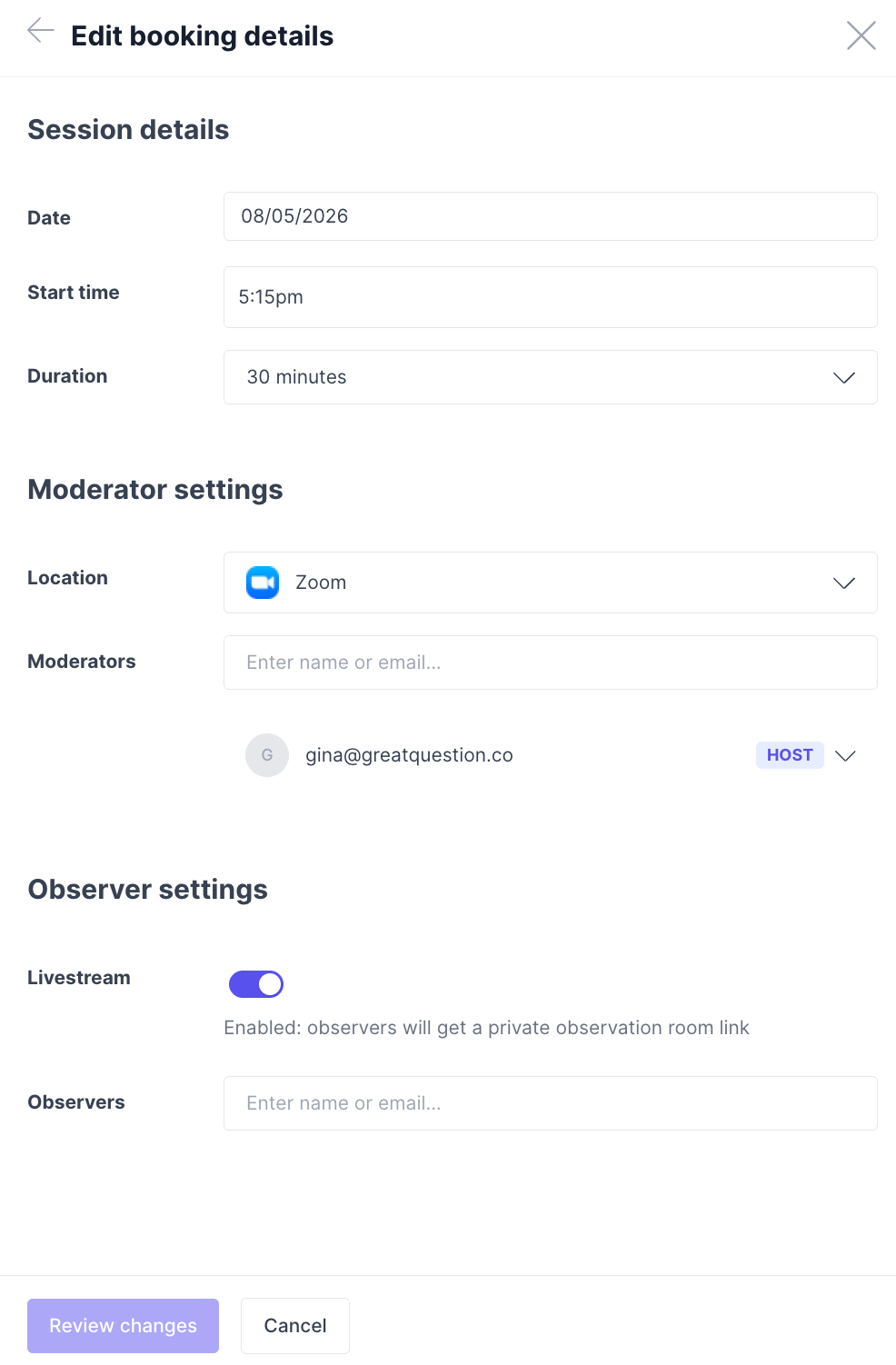
After publishing, you can enable or disable livestream for individual sessions:
* Go to the **Participants** tab.
* Open the booking details for a specific participation.
* Under **Observer settings**, toggle **Livestream** on or off for that session.
* Add observer email addresses if needed, they'll receive a calendar invite with the Interview Room link.
2. Add your observers by name and email. They don't need a Great Question account, each one receives a private Interview Room link to watch from, separate from the invite sent to the moderator.
Observer livestreams aren't available for in-person locations or focus group studies.
If you're using Zoom, each moderator needs **Local Recording** enabled in their Zoom account settings, without it, Great Question can't livestream the session or pull in the recording afterward. Great Question will flag a moderator's Zoom account if this is missing before the session.
When enabled, the following happens automatically:
* The moderator receives **two** calendar invitations, one for the video call with the participant, and one linking to the Interview Room where the livestream will be viewable. This is expected behavior and cannot be consolidated into a single invite at this time.
* A **Great Question Observer Bot** joins the call 2 minutes before the scheduled time. If nobody joins, it waits up to 15 minutes before leaving.
* The call is **livestreamed to observers** from the Interview Room. Participants are notified that the session is being recorded and may be viewed by observers from your team.
* Observers receive a **private Interview Room link** via calendar invite so they can watch privately. If livestreaming is not enabled, observers receive the same call URL sent to the participant instead.
* The session is **automatically added to the repository** when the call ends.
### Livestream Settings Per Session
After publishing, you can enable or disable livestream for individual sessions:
* Go to the **Participants** tab.
* Open the booking details for a specific participation.
* Under **Observer settings**, toggle **Livestream** on or off for that session.
* Add observer email addresses if needed, they'll receive a calendar invite with the Interview Room link.
 ### Configure Share Settings
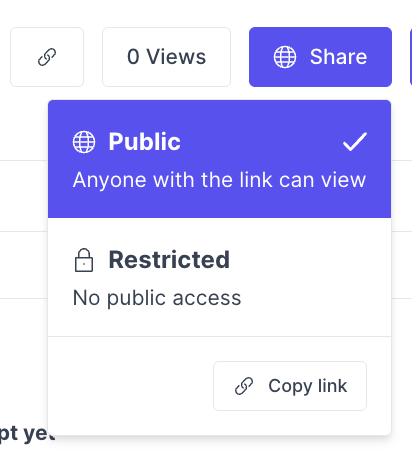
For observers who don't have a Great Question account, set the Interview Room's share settings to **Anyone with the link can view**. Admins can set this as the org-wide default under **Settings → Permissions**.
### Configure Share Settings
For observers who don't have a Great Question account, set the Interview Room's share settings to **Anyone with the link can view**. Admins can set this as the org-wide default under **Settings → Permissions**.
 ## The Livestream Experience
#### **For Moderators**
Moderators conduct the interview as usual on the video call. The Observer Bot joins automatically 2 minutes before the scheduled start time and appears as **"Great Question Observer"** in the meeting. The moderator should:
* **Admit the bot** from the waiting room (if applicable).
* **Grant recording permission** when prompted — the livestream won't begin until the bot has permission to record.
Once the bot is recording, the session is live. Moderators can monitor the livestream status from the Interview Room page:
| **Status** | **Badge Color** | **What It Means** |
| :---------------- | :--------------------- | :------------------------------------------------------------------------------------------ |
| **Initializing** | Gray | Livestream is being set up for this interview. |
| **Not Enabled** | Gray | Livestream hasn't been enabled for this interview. |
| **Upcoming** | Yellow | The interview is set up to be livestreamed, but the call hasn't started yet. |
| **Joining** | Yellow | The Observer Bot is joining the call to start the livestream. |
| **Pending** | Yellow | The Observer Bot is waiting for access (e.g., in the waiting room) to start the livestream. |
| **Live** | Green | The livestream is in progress. |
| **Done** | Green | The livestream has ended. |
| **Importing** | Gray | The recording is being imported and prepared. |
| **Uploading** | Gray | The recording is being uploaded. |
| **Error** | Red | There's an issue with the livestream. Check the Interview Room for details. |
If the bot encounters an issue, moderators can **re-send the Observer Bot** from the Interview Room page.
## The Livestream Experience
#### **For Moderators**
Moderators conduct the interview as usual on the video call. The Observer Bot joins automatically 2 minutes before the scheduled start time and appears as **"Great Question Observer"** in the meeting. The moderator should:
* **Admit the bot** from the waiting room (if applicable).
* **Grant recording permission** when prompted — the livestream won't begin until the bot has permission to record.
Once the bot is recording, the session is live. Moderators can monitor the livestream status from the Interview Room page:
| **Status** | **Badge Color** | **What It Means** |
| :---------------- | :--------------------- | :------------------------------------------------------------------------------------------ |
| **Initializing** | Gray | Livestream is being set up for this interview. |
| **Not Enabled** | Gray | Livestream hasn't been enabled for this interview. |
| **Upcoming** | Yellow | The interview is set up to be livestreamed, but the call hasn't started yet. |
| **Joining** | Yellow | The Observer Bot is joining the call to start the livestream. |
| **Pending** | Yellow | The Observer Bot is waiting for access (e.g., in the waiting room) to start the livestream. |
| **Live** | Green | The livestream is in progress. |
| **Done** | Green | The livestream has ended. |
| **Importing** | Gray | The recording is being imported and prepared. |
| **Uploading** | Gray | The recording is being uploaded. |
| **Error** | Red | There's an issue with the livestream. Check the Interview Room for details. |
If the bot encounters an issue, moderators can **re-send the Observer Bot** from the Interview Room page.
 A **pre-stream check** runs automatically when the session is created, validating that the meeting URL is accessible and the video provider settings are compatible. If issues are detected, you'll see a warning in the Interview Room and receive an email notification with details.
#### For Observers
Observers watch the session from a private Interview Room page. Here's what to expect:
* **Before the call starts:** A placeholder message reads "The Moderator hasn't started the call yet. Once the call starts, an Observer Bot will enter the call waiting room until the Moderator lets them in."
* **Bot in waiting room:** The status updates to "The Observer Bot is in the waiting room, but hasn't been let in yet."
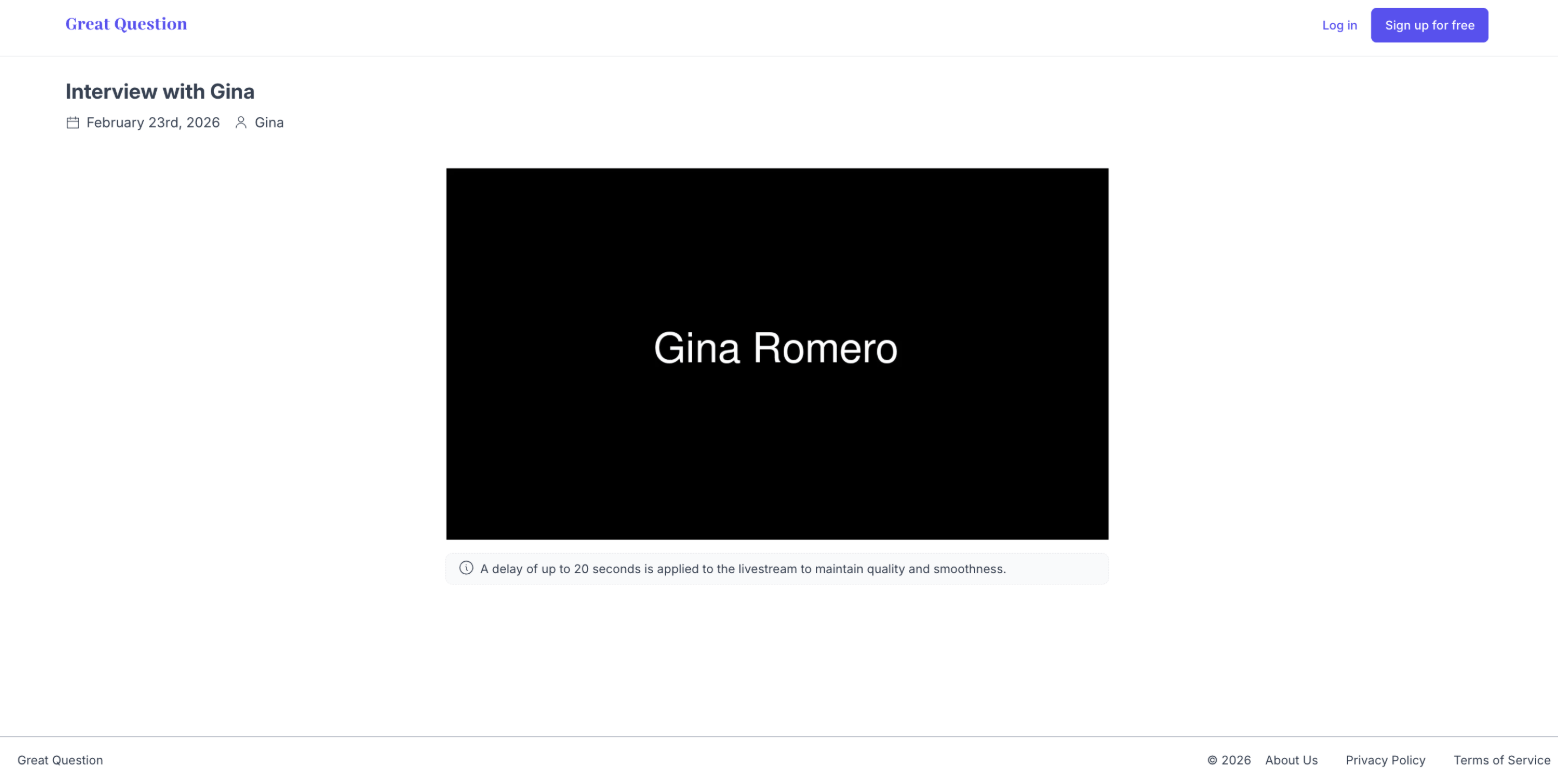
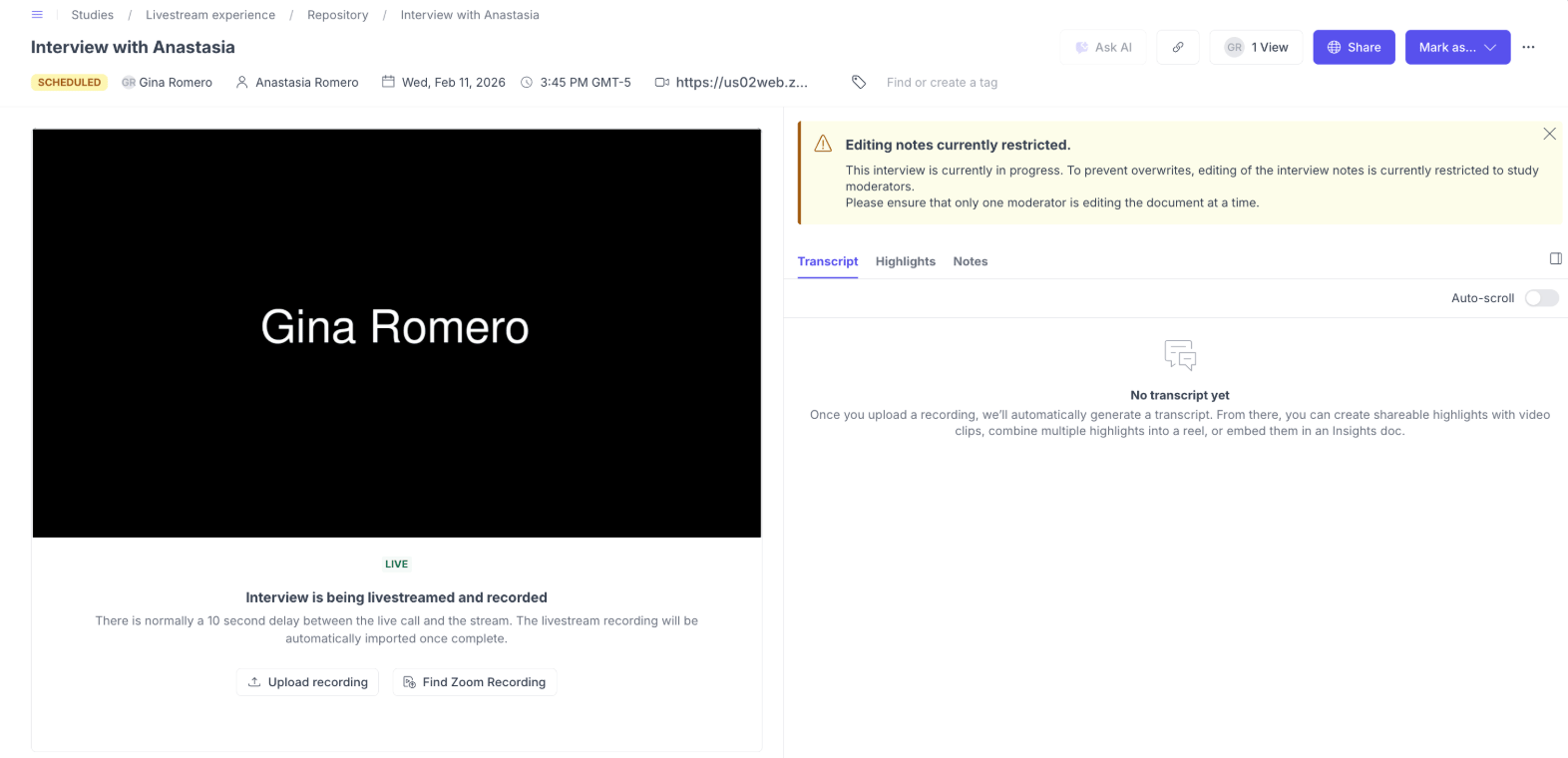
* **During the livestream:** The live video feed plays automatically (muted by default). A delay of up to 10-20 seconds is applied to maintain quality and smoothness.
Observer room as a non-logged in user:
A **pre-stream check** runs automatically when the session is created, validating that the meeting URL is accessible and the video provider settings are compatible. If issues are detected, you'll see a warning in the Interview Room and receive an email notification with details.
#### For Observers
Observers watch the session from a private Interview Room page. Here's what to expect:
* **Before the call starts:** A placeholder message reads "The Moderator hasn't started the call yet. Once the call starts, an Observer Bot will enter the call waiting room until the Moderator lets them in."
* **Bot in waiting room:** The status updates to "The Observer Bot is in the waiting room, but hasn't been let in yet."
* **During the livestream:** The live video feed plays automatically (muted by default). A delay of up to 10-20 seconds is applied to maintain quality and smoothness.
Observer room as a non-logged in user:
 Observer room as a logged in user:
 * **After the call ends:** The recording becomes available for playback once processing completes.
Observers can access the Interview Room via:
* The **calendar invite** they received when added as an observer.
* A **direct link** to the Interview Room shared by the study creator.
* A **public share link**, if one has been generated (no login required).
#### For Participants
Participants see the Observer Bot join the call as "Great Question Observer." They are informed that the session is being recorded and may be viewed by researchers. Observers are never visible to participants.
* **After the call ends:** The recording becomes available for playback once processing completes.
Observers can access the Interview Room via:
* The **calendar invite** they received when added as an observer.
* A **direct link** to the Interview Room shared by the study creator.
* A **public share link**, if one has been generated (no login required).
#### For Participants
Participants see the Observer Bot join the call as "Great Question Observer." They are informed that the session is being recorded and may be viewed by researchers. Observers are never visible to participants.
 ## Common use cases
Observer Rooms are useful whenever people need to watch research without crowding the call:
* Stakeholders who want to observe without joining the conversation
* Multiple researchers collaborating in real time
* Executives getting direct access to customer insights
* Training new researchers
* A dedicated teammate taking live notes
## Best practices
**Before the session**, confirm your moderator's Zoom account has Local Recording enabled if you're using Zoom, and use the pre-stream checks to confirm compatibility.
**During the session**, admit the Observer Bot promptly and grant recording permission right away, the livestream won't begin until you do. If you're the meeting organizer in Google Meet, make sure the assigned moderator's permissions actually carried over, organizer/moderator mismatches are a common cause of admission or recording failures.
**After the session**, wait for the recording to finish processing before you access the transcript and recording in your repository.
#### Video Provider Requirements
| **Provider** | **Requirements** |
| :------------------ | :-------------------------------------------------------------------------------------------------------------------------------------------------------------------- |
| **Zoom** | Enable local recording in your Zoom settings. Allow participants to request recording permission. Ensure web joining is allowed. Zoom Webinars are **not** supported. |
| **Google Meet** | Allow guest access (no sign-in required). |
| **Microsoft Teams** | Enable anonymous access for the meeting so the bot can join without sign-in credentials. |
| **Webex** | Ensure the meeting is configured to allow external participants to join without restrictions. |
To configure the Zoom requirements, each moderator (or a Zoom admin) updates these settings in the Zoom web portal:
1. Sign in at [zoom.us](https://zoom.us) and go to **Settings** > **Recording**.
2. Turn on **Local recording**, and enable the option that lets hosts give meeting participants permission to record locally.
3. Go to **Settings** > **Meeting** and enable **Show a "Join from your browser" link**, so the Observer Bot can join from the web.
If a Zoom admin manages your account, these settings may be locked at the account level. Ask your admin to enable them for the moderator's user group.
## Troubleshooting
##### Bot and Streaming Issues
| **Issue** | **What's Happening** | **How to Fix It** |
| :------------------------------------ | :--------------------------------------------------------------------------- | :----------------------------------------------------------------------------------------------------------------------------------------------------------------------------------------------------------------------- |
| **Observer Bot never joins the call** | The meeting link may be invalid, expired, or the meeting hasn't started yet. | Check that the meeting link in the booking details is valid and active. If the link has expired, update it. The bot joins 2 minutes before the scheduled time — make sure the call is started around the scheduled time. |
| **Bot is stuck in the waiting room** | The moderator hasn't admitted the bot yet, or the waiting room timed out. | The moderator should look for "Great Question Observer" in the waiting room and admit it. If the bot timed out, use **Re-send Observer Bot** from the Interview Room. |
| **Bot was removed from the call** | Someone kicked the bot from the meeting or waiting room. | Use **Re-send Observer Bot** in the Interview Room. Make sure all meeting participants know not to remove the bot. |
| **Livestream never goes live** | The bot joined but recording permission was not granted. | The moderator must accept the recording permission request. For Zoom, ensure local recording is enabled in the host's account settings and the advanced option to allow participants to record locally is turned on. |
| **Recording permission denied** | The host's video provider settings don't allow the bot to record. | Zoom: Enable local recording and allow participants to request recording permission. Google Meet: The host should accept any recording prompts. Re-send the bot after updating settings. |
| **Stream quality or delay issues** | The livestream has up to a 20-second delay by design. | This is expected behavior to maintain stream quality and smoothness. The delay cannot be reduced. |
##### Recording and Post-Session Issues
| **Issue** | **What's Happening** | **How to Fix It** |
| :---------------------------------------- | :---------------------------------------------------------------------------------------------------------------------------- | :------------------------------------------------------------------------------------------------------------------------------------------------------------------------------------------------------------------------------ |
| **Recording not available after session** | The recording is still being processed, or the bot failed before recording started. | Wait a few minutes — long sessions take longer to process. If the livestream status shows Error, the bot may not have captured a recording. You can upload a recording manually from the Interview Room. |
| **Transcript missing** | Transcription is still processing or the recording had issues. | Wait for the recording to finish processing. If the issue persists, contact [support@greatquestion.co](mailto:support@greatquestion.co). |
| **Livestream option not available** | The feature may be disabled at the account level, the study uses an unsupported location type, or the study is a focus group. | Livestream requires a supported video provider (Zoom, Google Meet, Microsoft Teams, or Webex). It's not available for in-person locations or focus groups. Check with your account admin to confirm the feature isn't disabled. |
***
**Still need help?** Contact us at [support@greatquestion.co](mailto:support@greatquestion.co) — median response time is 19 minutes during [support hours](https://greatquestion.co/features/about-our-support-team).
## Common use cases
Observer Rooms are useful whenever people need to watch research without crowding the call:
* Stakeholders who want to observe without joining the conversation
* Multiple researchers collaborating in real time
* Executives getting direct access to customer insights
* Training new researchers
* A dedicated teammate taking live notes
## Best practices
**Before the session**, confirm your moderator's Zoom account has Local Recording enabled if you're using Zoom, and use the pre-stream checks to confirm compatibility.
**During the session**, admit the Observer Bot promptly and grant recording permission right away, the livestream won't begin until you do. If you're the meeting organizer in Google Meet, make sure the assigned moderator's permissions actually carried over, organizer/moderator mismatches are a common cause of admission or recording failures.
**After the session**, wait for the recording to finish processing before you access the transcript and recording in your repository.
#### Video Provider Requirements
| **Provider** | **Requirements** |
| :------------------ | :-------------------------------------------------------------------------------------------------------------------------------------------------------------------- |
| **Zoom** | Enable local recording in your Zoom settings. Allow participants to request recording permission. Ensure web joining is allowed. Zoom Webinars are **not** supported. |
| **Google Meet** | Allow guest access (no sign-in required). |
| **Microsoft Teams** | Enable anonymous access for the meeting so the bot can join without sign-in credentials. |
| **Webex** | Ensure the meeting is configured to allow external participants to join without restrictions. |
To configure the Zoom requirements, each moderator (or a Zoom admin) updates these settings in the Zoom web portal:
1. Sign in at [zoom.us](https://zoom.us) and go to **Settings** > **Recording**.
2. Turn on **Local recording**, and enable the option that lets hosts give meeting participants permission to record locally.
3. Go to **Settings** > **Meeting** and enable **Show a "Join from your browser" link**, so the Observer Bot can join from the web.
If a Zoom admin manages your account, these settings may be locked at the account level. Ask your admin to enable them for the moderator's user group.
## Troubleshooting
##### Bot and Streaming Issues
| **Issue** | **What's Happening** | **How to Fix It** |
| :------------------------------------ | :--------------------------------------------------------------------------- | :----------------------------------------------------------------------------------------------------------------------------------------------------------------------------------------------------------------------- |
| **Observer Bot never joins the call** | The meeting link may be invalid, expired, or the meeting hasn't started yet. | Check that the meeting link in the booking details is valid and active. If the link has expired, update it. The bot joins 2 minutes before the scheduled time — make sure the call is started around the scheduled time. |
| **Bot is stuck in the waiting room** | The moderator hasn't admitted the bot yet, or the waiting room timed out. | The moderator should look for "Great Question Observer" in the waiting room and admit it. If the bot timed out, use **Re-send Observer Bot** from the Interview Room. |
| **Bot was removed from the call** | Someone kicked the bot from the meeting or waiting room. | Use **Re-send Observer Bot** in the Interview Room. Make sure all meeting participants know not to remove the bot. |
| **Livestream never goes live** | The bot joined but recording permission was not granted. | The moderator must accept the recording permission request. For Zoom, ensure local recording is enabled in the host's account settings and the advanced option to allow participants to record locally is turned on. |
| **Recording permission denied** | The host's video provider settings don't allow the bot to record. | Zoom: Enable local recording and allow participants to request recording permission. Google Meet: The host should accept any recording prompts. Re-send the bot after updating settings. |
| **Stream quality or delay issues** | The livestream has up to a 20-second delay by design. | This is expected behavior to maintain stream quality and smoothness. The delay cannot be reduced. |
##### Recording and Post-Session Issues
| **Issue** | **What's Happening** | **How to Fix It** |
| :---------------------------------------- | :---------------------------------------------------------------------------------------------------------------------------- | :------------------------------------------------------------------------------------------------------------------------------------------------------------------------------------------------------------------------------ |
| **Recording not available after session** | The recording is still being processed, or the bot failed before recording started. | Wait a few minutes — long sessions take longer to process. If the livestream status shows Error, the bot may not have captured a recording. You can upload a recording manually from the Interview Room. |
| **Transcript missing** | Transcription is still processing or the recording had issues. | Wait for the recording to finish processing. If the issue persists, contact [support@greatquestion.co](mailto:support@greatquestion.co). |
| **Livestream option not available** | The feature may be disabled at the account level, the study uses an unsupported location type, or the study is a focus group. | Livestream requires a supported video provider (Zoom, Google Meet, Microsoft Teams, or Webex). It's not available for in-person locations or focus groups. Check with your account admin to confirm the feature isn't disabled. |
***
**Still need help?** Contact us at [support@greatquestion.co](mailto:support@greatquestion.co) — median response time is 19 minutes during [support hours](https://greatquestion.co/features/about-our-support-team).