> ## Documentation Index
> Fetch the complete documentation index at: https://greatquestion.co/support/llms.txt
> Use this file to discover all available pages before exploring further.
# AI Synthesis
> Turn completed studies into structured findings automatically, with AI-generated summaries, themed insights, and highlight reels.
**AI Synthesis** is where you go to understand what a study revealed. Once a moderated interview study reaches three or more completed interviews with transcripts, the AI Synthesis tab automatically generates a structured summary of your findings, an overview, key insights, and major themes with supporting quotes. No manual tagging or organizing required.
For teams that prefer a hands-on approach, the manual **Highlights** board sits alongside Synthesis as its own tab, giving you the same drag-and-drop workspace for manually grouping highlights into themes.
## Why it matters
AI Synthesis gets you to insights faster by removing the manual work of reviewing every session and organizing highlights, once your study crosses the three-session threshold, a structured summary is ready and waiting. Every theme includes inline citation badges that link directly to verbatim participant quotes, so you can trust the output: hover over a badge to see the quote, or click it to jump to that exact moment in the transcript. PMs, designers, and stakeholders can open the Synthesis tab and immediately understand what a study found, without a researcher bottleneck. And when session recordings are available, an auto-generated highlight reel stitches the key quotes into a single video compilation with chapter cards.
## Where to find AI Synthesis
AI Synthesis is available on moderated interview studies (video-call format) once they reach three or more completed interviews with transcripts. It isn't available for Focus Groups, Surveys, Panel studies, or Online Tasks.
1. Open your study.
2. Click **AI Synthesis** in the left-side menu under **Results**.
"AI Synthesis" and "Insights" are two different things. Synthesis is this auto-generated, per-study summary. [Insights](/support/support/repository/insights-101) are separate, manually-authored documents you create in the Repository to compile findings across one or more studies.
## The AI Synthesis tab
The AI Synthesis tab is the default view. It displays an overview, major themes, and key insights, plus an auto-generated highlight reel when recordings are available.
The **overview** gives a concise summary of what the study explored and what emerged, including the number of interviews completed.
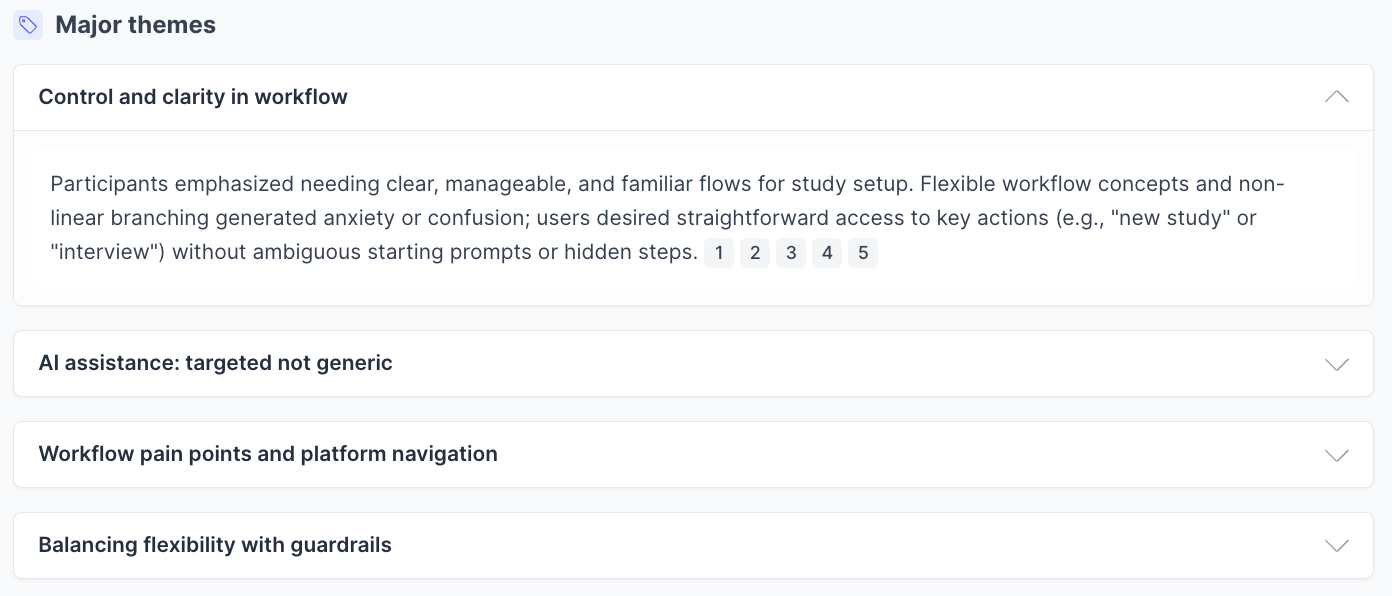
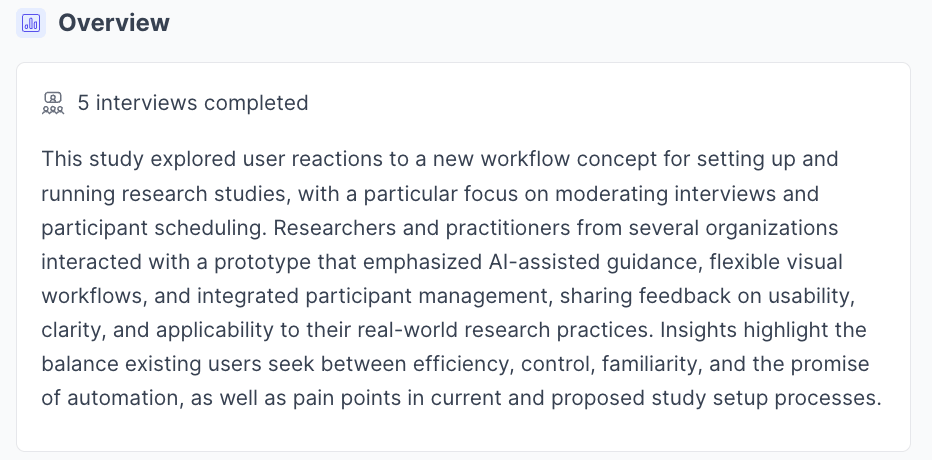 **Major themes** are the core patterns across your interviews. Each theme is an expandable section with sub-items that carry inline citation badges representing the number of supporting quotes. Hover over a badge to see the verbatim quote; click it to jump to that moment in the transcript and verify the finding in context.
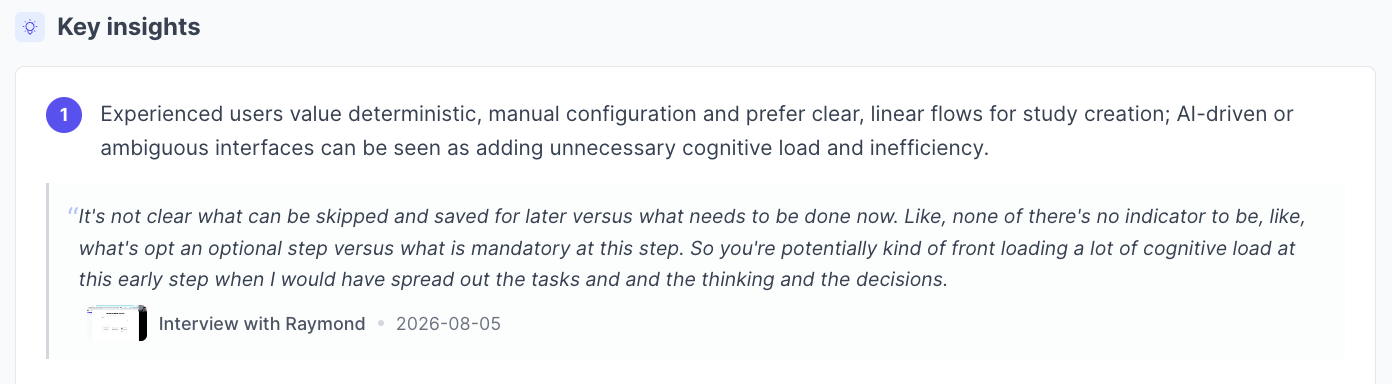
 **Key insights** are the most significant takeaways, numbered and ordered by importance. Each includes a supporting quote attributed to a participant with the interview date.
 The **highlight reel** is a video compilation of the key quotes stitched together from across your sessions, with chapter cards so you can scrub directly to individual quotes. The reel duration and the number of supporting quotes appear below the video.
AI Synthesis is read-only, you cannot edit or rearrange the themes it produces.
## AI Synthesis vs. Highlights: which should I use?
**AI Synthesis** is fully automatic. Once a study reaches three or more completed interviews, it generates a structured summary, themed insights, and a highlight reel with no manual effort. It's designed for speed and is ideal for PMs, designers, and stakeholders who need to understand a study quickly, or for researchers who want a starting point before diving deeper.
**Highlights** is a manual workspace. You create your own groups, drag and drop highlights between them, name your themes, and organize the evidence the way you see fit. It gives you full control and suits researchers doing deep qualitative analysis or building custom frameworks. It takes more time but gives you more precision.
## Using the Highlights board
The manual synthesis workspace is available from the **Highlights** tab, next to AI Synthesis, under **Results**.
**If you already know your themes:**
1. Click the **+** button to create a new group.
2. Give your group a name.
3. Optionally, use the **⋯** menu to change the group's color or add a description.
4. Drag and drop highlights from **Ungrouped** into your new groups.
5. Select highlights using checkboxes or **⋯ → Select all**.
6. Add grouped highlights to a Reel, an Insight, or your clipboard.
**If you're still exploring your themes:** review your Ungrouped highlights, find ones with something in common, and drag them into the box labeled **Drag & drop highlights to create a new group** — or click **+** and name groups as patterns emerge.
### Highlights board features
**Copy highlights.** Select one or more highlights and click **Copy highlights**. Pasting into tools like FigJam or Google Sheets preserves table formatting, which is useful for hybrid workflows.
**Re-group by.** Click **Re-group by** to automatically organize highlights by **Participant** or **Tag**, helpful when you're not sure where to start.
Re-grouping resets your existing groups and removes manual ones. Only use it when you're ready to start fresh, and copy your highlights first if you want to preserve your current organization.
**Sort by.** Use **Sort by** to reorder highlights based on attributes like time, participant, or tag. Sorting affects highlight order within groups but doesn't change group order.
## Troubleshooting
| Issue | What's happening | How to fix it |
| ---------------------------------------- | --------------------------------------------------------------------------------------------------------- | ------------------------------------------------------------------------------------------------------------------------------------ |
| Synthesis tab not visible | The study isn't a moderated interview study, or it's a Focus Group — Synthesis isn't available for those. | Confirm the study is a video-call interview study. |
| AI Synthesis shows "Not enough data yet" | The study has fewer than three completed, transcribed interviews. | Complete more interviews with transcripts — the tab reads: "AI synthesis requires at least 3 completed interviews with transcripts." |
| Themes don't appear in AI Synthesis | The AI summary hasn't generated structured theme data yet. | Refresh the page. If themes still don't appear, the study may need additional sessions for the AI to identify patterns. |
| Highlights not appearing under Ungrouped | No highlights are linked to the study, or filters are applied. | Confirm highlights were created within this study, clear all filters, and refresh. |
| Can't drag and drop highlights | Browser rendering lag or the page hasn't fully loaded. | Refresh the page. If it persists, try zooming out to 90% or using another supported browser. |
| Lost manual groups after re-grouping | **Re-group by** replaces existing manual groupings. | Only use **Re-group by** when ready to reset. Copy highlights first, or duplicate the study before regrouping. |
| Copy highlights not working | Browser clipboard permissions are restricted. | Allow clipboard access in your browser settings, or use Ctrl/Cmd + C after selecting highlights. |
***
**Still need help?** Contact us at [support@greatquestion.co](mailto:support@greatquestion.co) — median response time is 19 minutes during [support hours](https://greatquestion.co/features/about-our-support-team).
The **highlight reel** is a video compilation of the key quotes stitched together from across your sessions, with chapter cards so you can scrub directly to individual quotes. The reel duration and the number of supporting quotes appear below the video.
AI Synthesis is read-only, you cannot edit or rearrange the themes it produces.
## AI Synthesis vs. Highlights: which should I use?
**AI Synthesis** is fully automatic. Once a study reaches three or more completed interviews, it generates a structured summary, themed insights, and a highlight reel with no manual effort. It's designed for speed and is ideal for PMs, designers, and stakeholders who need to understand a study quickly, or for researchers who want a starting point before diving deeper.
**Highlights** is a manual workspace. You create your own groups, drag and drop highlights between them, name your themes, and organize the evidence the way you see fit. It gives you full control and suits researchers doing deep qualitative analysis or building custom frameworks. It takes more time but gives you more precision.
## Using the Highlights board
The manual synthesis workspace is available from the **Highlights** tab, next to AI Synthesis, under **Results**.
**If you already know your themes:**
1. Click the **+** button to create a new group.
2. Give your group a name.
3. Optionally, use the **⋯** menu to change the group's color or add a description.
4. Drag and drop highlights from **Ungrouped** into your new groups.
5. Select highlights using checkboxes or **⋯ → Select all**.
6. Add grouped highlights to a Reel, an Insight, or your clipboard.
**If you're still exploring your themes:** review your Ungrouped highlights, find ones with something in common, and drag them into the box labeled **Drag & drop highlights to create a new group** — or click **+** and name groups as patterns emerge.
### Highlights board features
**Copy highlights.** Select one or more highlights and click **Copy highlights**. Pasting into tools like FigJam or Google Sheets preserves table formatting, which is useful for hybrid workflows.
**Re-group by.** Click **Re-group by** to automatically organize highlights by **Participant** or **Tag**, helpful when you're not sure where to start.
Re-grouping resets your existing groups and removes manual ones. Only use it when you're ready to start fresh, and copy your highlights first if you want to preserve your current organization.
**Sort by.** Use **Sort by** to reorder highlights based on attributes like time, participant, or tag. Sorting affects highlight order within groups but doesn't change group order.
## Troubleshooting
| Issue | What's happening | How to fix it |
| ---------------------------------------- | --------------------------------------------------------------------------------------------------------- | ------------------------------------------------------------------------------------------------------------------------------------ |
| Synthesis tab not visible | The study isn't a moderated interview study, or it's a Focus Group — Synthesis isn't available for those. | Confirm the study is a video-call interview study. |
| AI Synthesis shows "Not enough data yet" | The study has fewer than three completed, transcribed interviews. | Complete more interviews with transcripts — the tab reads: "AI synthesis requires at least 3 completed interviews with transcripts." |
| Themes don't appear in AI Synthesis | The AI summary hasn't generated structured theme data yet. | Refresh the page. If themes still don't appear, the study may need additional sessions for the AI to identify patterns. |
| Highlights not appearing under Ungrouped | No highlights are linked to the study, or filters are applied. | Confirm highlights were created within this study, clear all filters, and refresh. |
| Can't drag and drop highlights | Browser rendering lag or the page hasn't fully loaded. | Refresh the page. If it persists, try zooming out to 90% or using another supported browser. |
| Lost manual groups after re-grouping | **Re-group by** replaces existing manual groupings. | Only use **Re-group by** when ready to reset. Copy highlights first, or duplicate the study before regrouping. |
| Copy highlights not working | Browser clipboard permissions are restricted. | Allow clipboard access in your browser settings, or use Ctrl/Cmd + C after selecting highlights. |
***
**Still need help?** Contact us at [support@greatquestion.co](mailto:support@greatquestion.co) — median response time is 19 minutes during [support hours](https://greatquestion.co/features/about-our-support-team).