> ## Documentation Index
> Fetch the complete documentation index at: https://greatquestion.co/support/llms.txt
> Use this file to discover all available pages before exploring further.
# AI Moderated Prototype Testing
> An AI moderator asks participants questions live while they work through a prototype or website task. Currently in beta.
**Beta:** AI Moderated Prototype Testing is an early-access capability inside AI Moderated Interviews. Availability, setup steps, and the participant experience described here are directional and subject to change. Contact your Customer Success Manager to request access or to confirm current details before relying on this for a live study.
AI-moderated prototype testing lets an AI moderator ask your participants questions while they work through a prototype or website task, live, instead of running the task unmoderated. It's set up the same way as an [AI Moderated Interview](/support/support/studies/ai-moderated-interviews), you choose **AI-moderated interviews** when creating your study, and the prototype or website URL is added inside the studio when you design the session.
> This is one of two AI moderation formats Great Question offers — see the [**AI Moderation overview**](/support/support/studies/ai-moderation) for how this compares to a standard [AI Moderated Interview](/support/support/studies/ai-moderated-interviews).
Prototype testing here supports any publicly accessible prototype or website, not just Figma, for example a prototype hosted on **Magic Patterns**, a site deployed on **Vercel**, or your own live site. If a participant's browser can reach the URL, it can be tested.
## Why It Matters
**Get the "why" behind the click.** Pair the task itself with real-time reasoning from the AI moderator, without scheduling a live moderator.
**Scale without scheduling.** Run far more sessions than you could moderate live, at any hour, without coordinating calendars.
**A single, seamless flow.** Participants get one continuous experience, invite, consent, and task, not two separate systems bolted together.
**Nothing else changes.** Recruitment, screening, consent, and incentives all work exactly the way they do for any other study.
## Common Use Cases
| Use Case | Description |
| --------------------------------------- | ------------------------------------------------------------------------------------------------- |
| Moderated usability validation at scale | Get task performance and the reasoning behind it, without scheduling live moderators. |
| Early concept or prototype feedback | Gather in-depth reactions to a design early, when speed and scale matter most. |
| Comparative design testing | Run the same moderated task against two prototypes to see which performs, and reads, better. |
| Supplemental qualitative insight | Add depth alongside unmoderated prototype or website tests without increasing moderator workload. |
## Set Up an AI Moderated Prototype Test
### Step 1: Create the Study and Choose "AI-Moderated Interviews"
1. Click **New study**.
2. When prompted to choose how the study is run, select **AI-moderated interviews**, same as a standard AI Moderated Interview. There's no separate "prototype testing" option at this step; the prototype/website task is configured inside the studio in Step 2. 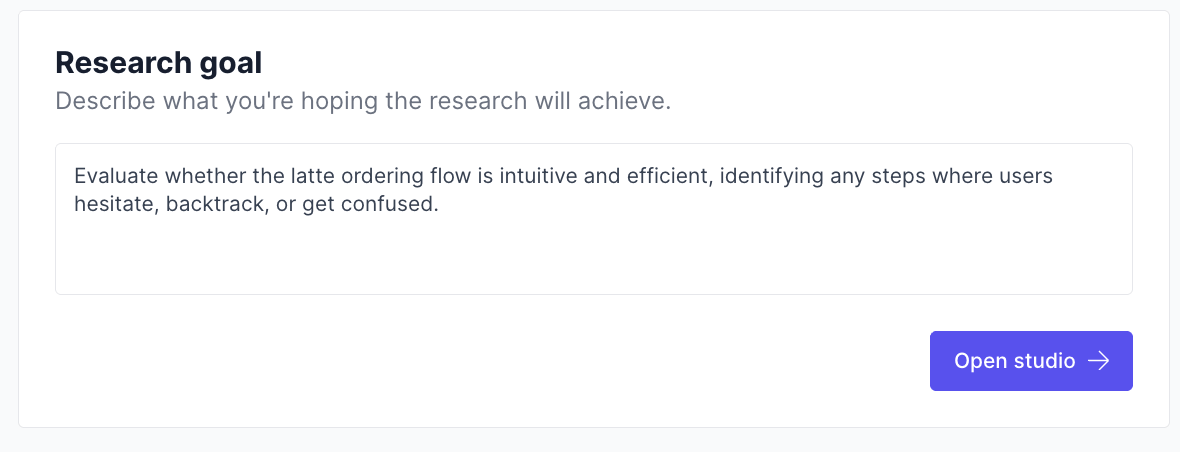 3. Give your study a name and continue, just as you would for any other study, enable external recruitment, screener, consent, and incentives if desired, and go through that normal setup as well.
Everything you already know from external recruitment, screener, consent, and incentives works the same way. The only difference is that an AI moderator asks questions while participants work through the task.
### Step 2: Design the Prototype Task in the Studio
AI-moderated prototype tests are designed in the Great Question studio, same entry point as any AI Moderated Interview.
1. On the study's **AI Moderated Interview** step, click **Open studio** after entering your research goal.
3. Give your study a name and continue, just as you would for any other study, enable external recruitment, screener, consent, and incentives if desired, and go through that normal setup as well.
Everything you already know from external recruitment, screener, consent, and incentives works the same way. The only difference is that an AI moderator asks questions while participants work through the task.
### Step 2: Design the Prototype Task in the Studio
AI-moderated prototype tests are designed in the Great Question studio, same entry point as any AI Moderated Interview.
1. On the study's **AI Moderated Interview** step, click **Open studio** after entering your research goal. 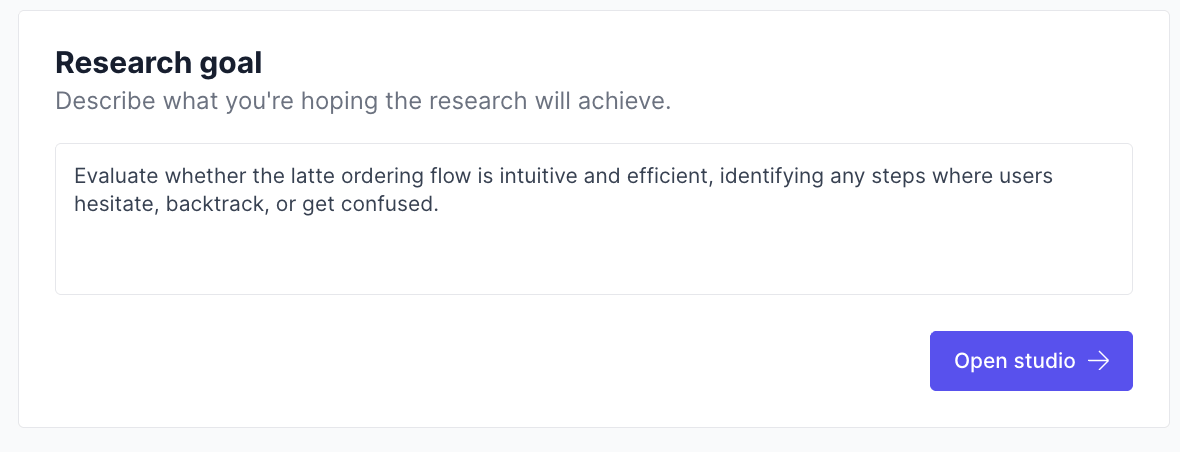 2. You'll be taken straight into the studio, already signed in, no second login.
3. This is where the prototype-specific setup happens: when asked, paste the link to the prototype or website you want participants to work through. Any publicly accessible URL works, Figma prototypes, prototypes hosted on Magic Patterns or Vercel, or your own live site.
2. You'll be taken straight into the studio, already signed in, no second login.
3. This is where the prototype-specific setup happens: when asked, paste the link to the prototype or website you want participants to work through. Any publicly accessible URL works, Figma prototypes, prototypes hosted on Magic Patterns or Vercel, or your own live site. 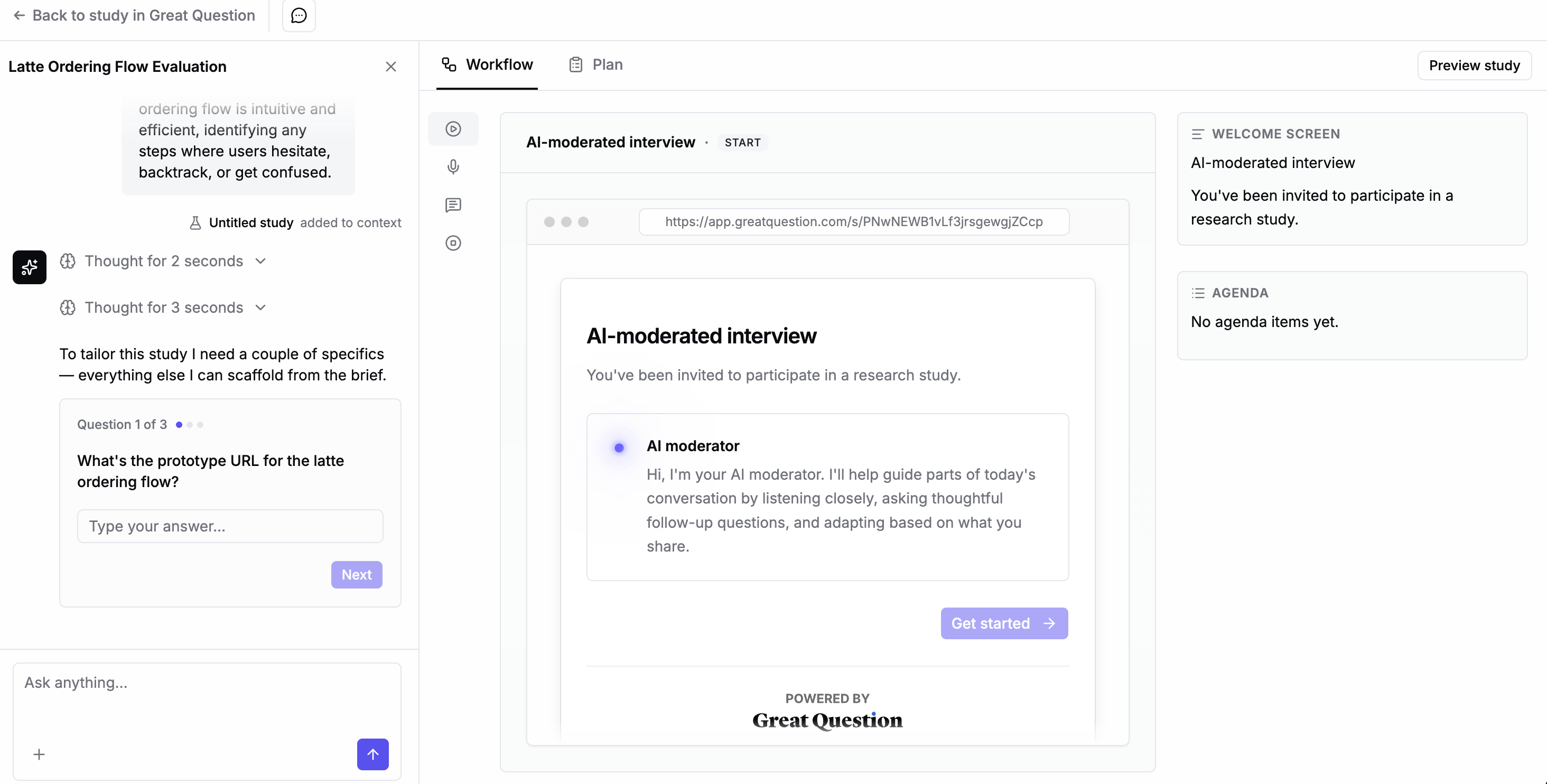 4. Build the rest of your moderated task using the guided creation flow: describe what you want to learn with your research goal, and refine the questions the AI will ask as participants navigate your prototype.
5. **Preview** the test to experience it exactly as a participant will, including the live AI moderation. Previews don't record anything or save any results.
6. When you're happy, return to Great Question by clicking **Back to study** in the top-left corner.
> **Tip:** You can come back and click **Edit** in the studio again anytime before launch to tweak the URL or the questions. Great Question will keep showing the latest version of what you built.
### Step 3: Review What You Built, Back in Great Question
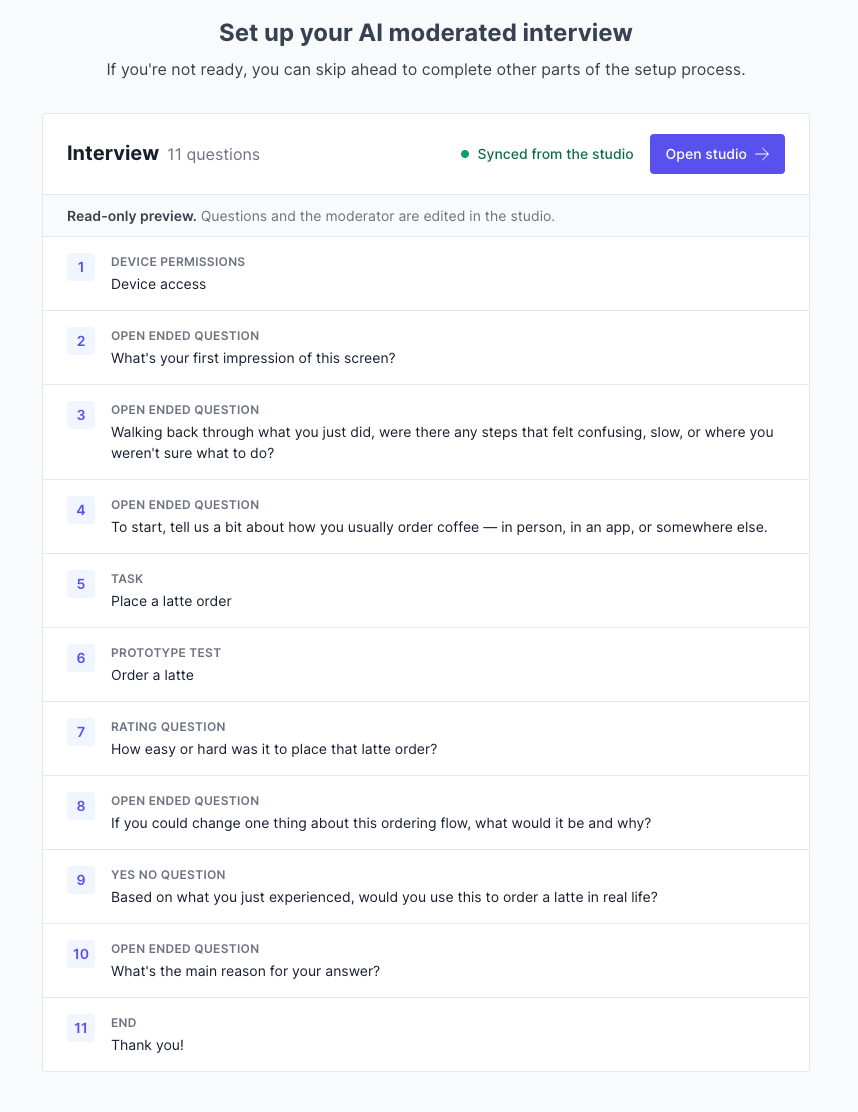
Once you've authored the test, your study's **AI Moderated Interview** step shows an **Open studio** button to jump back in and make edits, plus the outline of what you created.
This stays in sync with the studio automatically, so what you see in Great Question always matches the live test.
4. Build the rest of your moderated task using the guided creation flow: describe what you want to learn with your research goal, and refine the questions the AI will ask as participants navigate your prototype.
5. **Preview** the test to experience it exactly as a participant will, including the live AI moderation. Previews don't record anything or save any results.
6. When you're happy, return to Great Question by clicking **Back to study** in the top-left corner.
> **Tip:** You can come back and click **Edit** in the studio again anytime before launch to tweak the URL or the questions. Great Question will keep showing the latest version of what you built.
### Step 3: Review What You Built, Back in Great Question
Once you've authored the test, your study's **AI Moderated Interview** step shows an **Open studio** button to jump back in and make edits, plus the outline of what you created.
This stays in sync with the studio automatically, so what you see in Great Question always matches the live test.
 ### Step 4: Review and Publish
Check all sections for accuracy. When ready, click **Create** to publish your study.
## What Your Participants Experience
For your participants, it's one continuous study, they don't need an account and have nothing to install. Here's the journey end to end:
1. **They get your invite.** The same invite you'd send for any study, using your recruitment, screener, and incentive settings.
2. **They open it in Great Question.** They land on your study page, where they're recognized from their invite link and give **consent**, just like a normal study.
3. **They work through the prototype, moderated by the AI.** From there they move straight into the task: one welcome, the AI asking questions as they navigate your prototype, one goodbye. The transition is seamless, it feels like a single experience, not two separate steps.
### Step 4: Review and Publish
Check all sections for accuracy. When ready, click **Create** to publish your study.
## What Your Participants Experience
For your participants, it's one continuous study, they don't need an account and have nothing to install. Here's the journey end to end:
1. **They get your invite.** The same invite you'd send for any study, using your recruitment, screener, and incentive settings.
2. **They open it in Great Question.** They land on your study page, where they're recognized from their invite link and give **consent**, just like a normal study.
3. **They work through the prototype, moderated by the AI.** From there they move straight into the task: one welcome, the AI asking questions as they navigate your prototype, one goodbye. The transition is seamless, it feels like a single experience, not two separate steps. 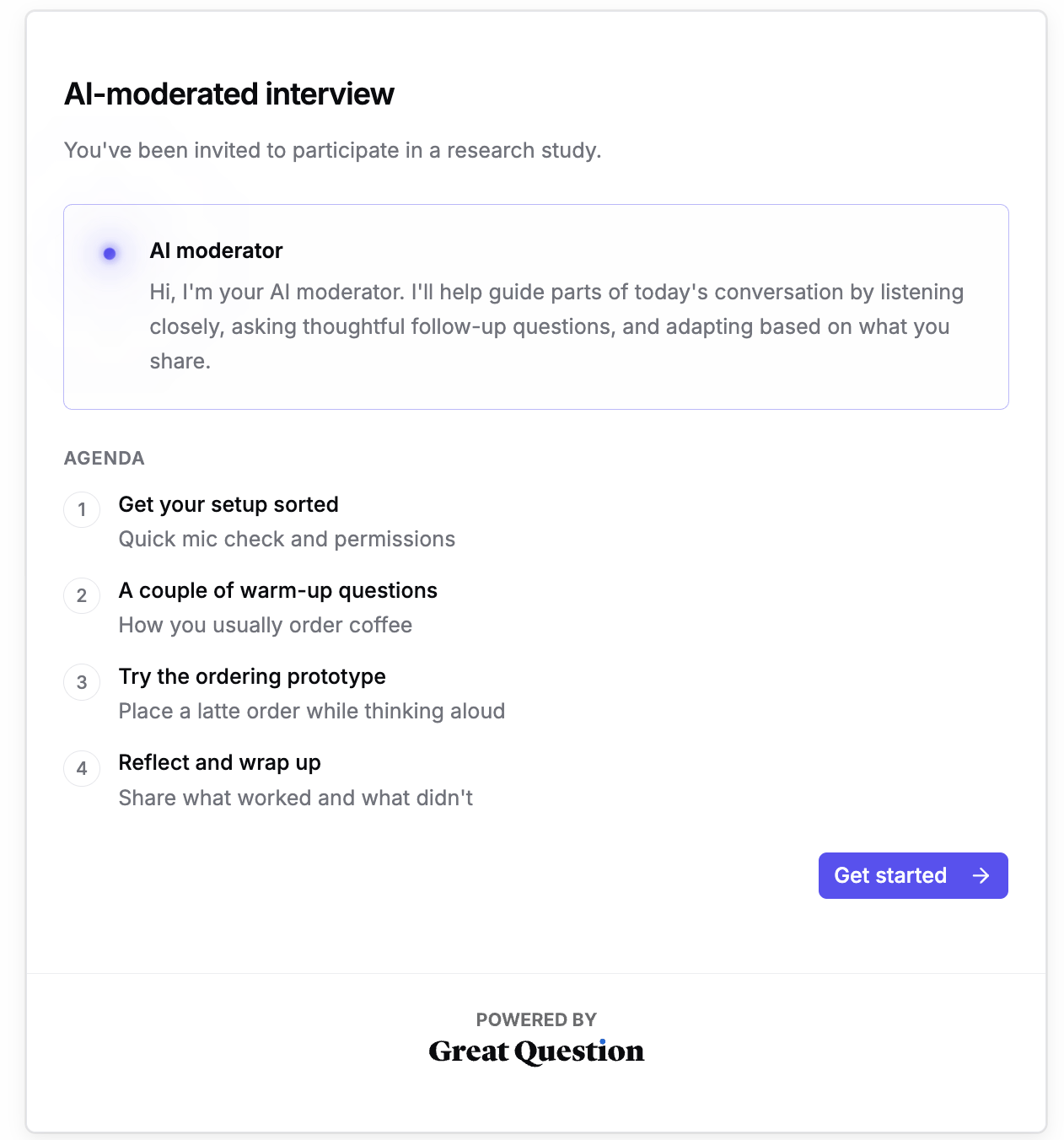
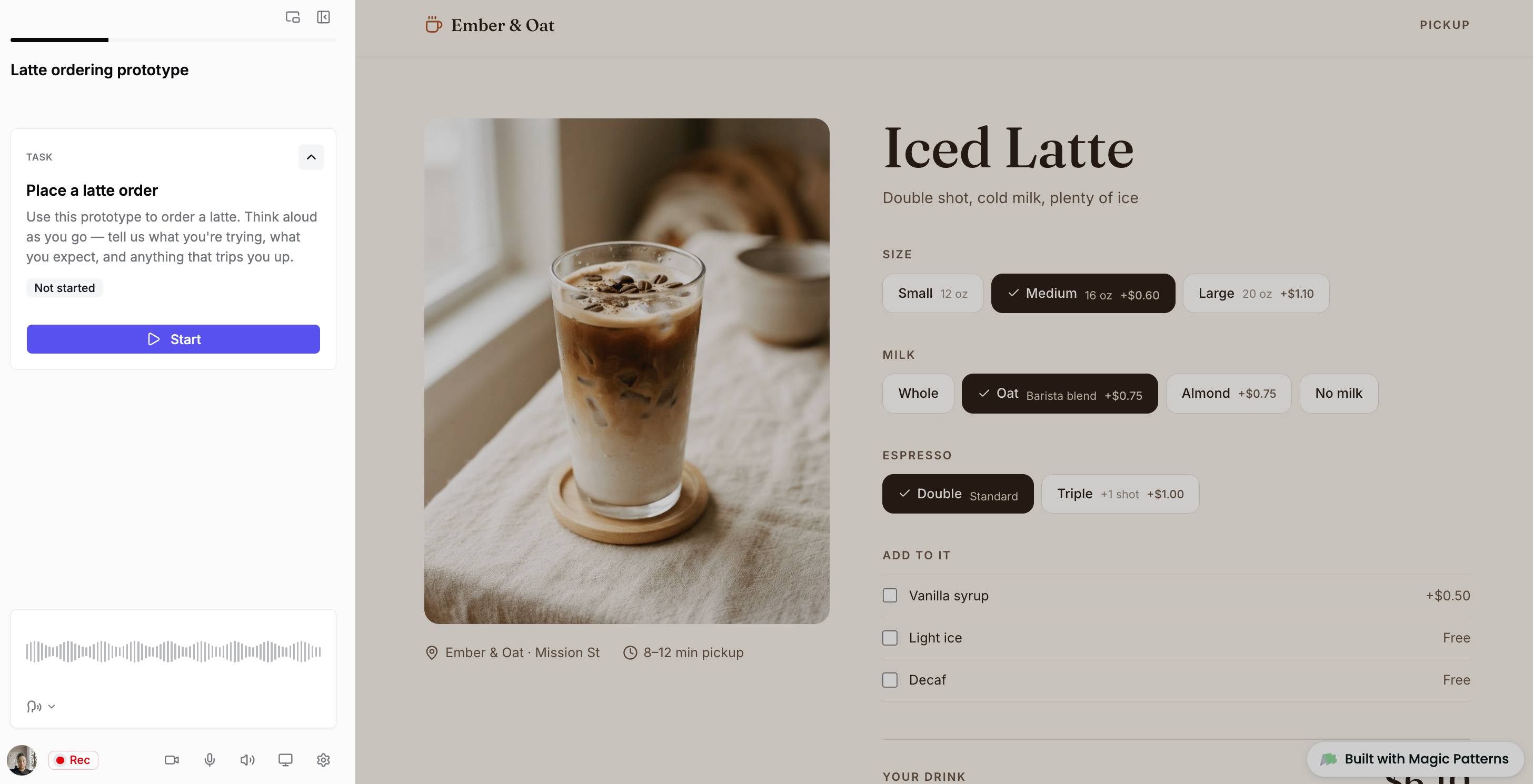
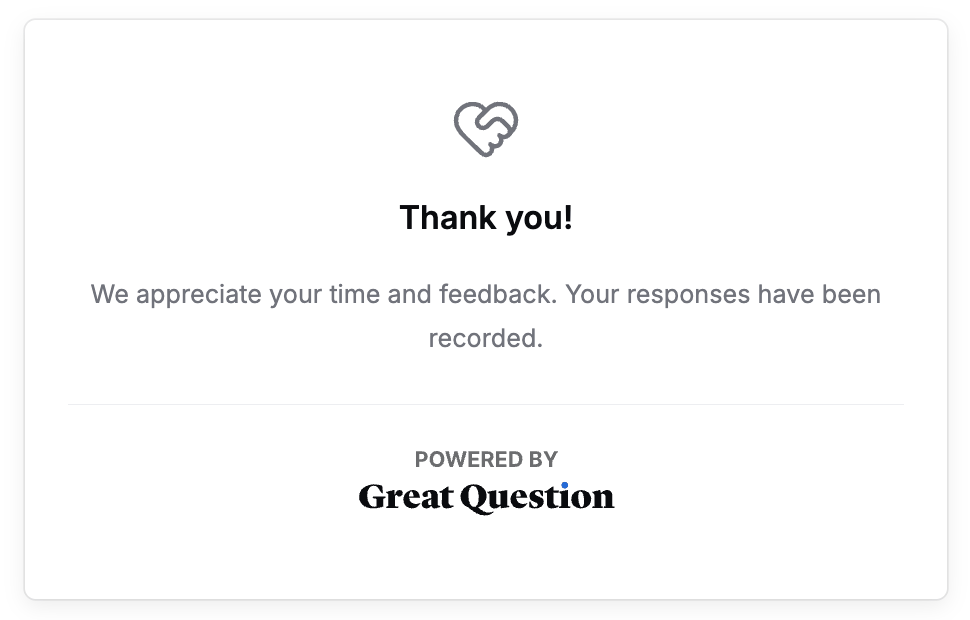 4. **They finish, and results return to your study.** When they're done, their recording and transcript flow back into Great Question automatically.
> **Note:** Great Question handles who your participants are, recruitment, screening, consent, and incentives. The AI moderation itself is the only part run in the studio, and your participants experience the whole thing as one smooth flow.
## Manage Your Study After Publishing
### Setup
* **Plan** — Adjust participant limits, incentives, study attributes, segments, and more.
* **AI Moderated Interview** — View the outline (including the prototype/website URL) and jump back into the studio to edit.
* **Incentives** (if applicable) — Manage incentive settings.
* **Screener** (if applicable) — Edit questions or update logic.
* **Emails** — Customize participant-facing communications.
* **Pages** — Update the **Landing Page** and **Screener Disqualification Page**.
* **Automations** — Send invitation and task reminders after 24 hours.
* **Notifications** — Choose which email alerts to receive.
### Execution
* **Participants** — Add candidates, track progress, and manage status.
* **Recruitment Requests** (if applicable) — Manage recruit requests.
* **Stats** — View email performance metrics.
* **Screener Responses** (if applicable) — Review responses to determine eligibility.
### Results
* **Tags** — Organize study and global tags.
* **Synthesis** — Group highlights to identify themes.
* **Repository** — Access recordings and transcripts, the same place you'd find any other session recording. From there, you can watch, read, tag, clip, and analyze exactly as you do today.
## Best Practices
**Give your research goal real context before opening the studio.** The more specific your goal, the better the guided creation flow's first draft of questions will be.
**Always preview before publishing.** Previews run the live AI moderation exactly as a participant will experience it, and don't count toward your results, there's no reason not to run through it more than once.
**Treat the studio as the source of truth for the prototype URL and the moderator's questions.** Editing happens there, not in Great Question directly; Great Question always mirrors the latest synced version.
## Troubleshooting
| Issue | What's Happening | How to Fix |
| ------------------------------------------------------------- | ---------------------------------------------------------------------------------------- | ----------------------------------------------------------------------------------------------- |
| Changes made in the studio aren't reflected in Great Question | The record failed to sync back from the studio, most often a temporary connection issue. | Reopen **Open studio** and re-save. If it keeps failing, contact your Customer Success Manager. |
| The studio doesn't offer a way to add a prototype/website URL | This capability is in limited beta. | Contact your Customer Success Manager to request access. |
## Frequently Asked Questions
**Do participants know they're talking to an AI?**
4. **They finish, and results return to your study.** When they're done, their recording and transcript flow back into Great Question automatically.
> **Note:** Great Question handles who your participants are, recruitment, screening, consent, and incentives. The AI moderation itself is the only part run in the studio, and your participants experience the whole thing as one smooth flow.
## Manage Your Study After Publishing
### Setup
* **Plan** — Adjust participant limits, incentives, study attributes, segments, and more.
* **AI Moderated Interview** — View the outline (including the prototype/website URL) and jump back into the studio to edit.
* **Incentives** (if applicable) — Manage incentive settings.
* **Screener** (if applicable) — Edit questions or update logic.
* **Emails** — Customize participant-facing communications.
* **Pages** — Update the **Landing Page** and **Screener Disqualification Page**.
* **Automations** — Send invitation and task reminders after 24 hours.
* **Notifications** — Choose which email alerts to receive.
### Execution
* **Participants** — Add candidates, track progress, and manage status.
* **Recruitment Requests** (if applicable) — Manage recruit requests.
* **Stats** — View email performance metrics.
* **Screener Responses** (if applicable) — Review responses to determine eligibility.
### Results
* **Tags** — Organize study and global tags.
* **Synthesis** — Group highlights to identify themes.
* **Repository** — Access recordings and transcripts, the same place you'd find any other session recording. From there, you can watch, read, tag, clip, and analyze exactly as you do today.
## Best Practices
**Give your research goal real context before opening the studio.** The more specific your goal, the better the guided creation flow's first draft of questions will be.
**Always preview before publishing.** Previews run the live AI moderation exactly as a participant will experience it, and don't count toward your results, there's no reason not to run through it more than once.
**Treat the studio as the source of truth for the prototype URL and the moderator's questions.** Editing happens there, not in Great Question directly; Great Question always mirrors the latest synced version.
## Troubleshooting
| Issue | What's Happening | How to Fix |
| ------------------------------------------------------------- | ---------------------------------------------------------------------------------------- | ----------------------------------------------------------------------------------------------- |
| Changes made in the studio aren't reflected in Great Question | The record failed to sync back from the studio, most often a temporary connection issue. | Reopen **Open studio** and re-save. If it keeps failing, contact your Customer Success Manager. |
| The studio doesn't offer a way to add a prototype/website URL | This capability is in limited beta. | Contact your Customer Success Manager to request access. |
## Frequently Asked Questions
**Do participants know they're talking to an AI?**
Yes, it's mentioned where they reach the landing page.
**Where do my participants give consent — and where does the task happen?**
Both are part of one smooth flow for the participant. They open your invite in Great Question and give consent there (with your usual recruitment, screener, and incentive settings), then move straight into the AI-moderated task without any extra sign-in. Great Question handles participant identity, consent, recruitment, and incentives; the AI moderation itself runs in the studio. Their recording and transcript come back into your Great Question study automatically.
**Can I see the test before I launch?** Yes, use **Preview** in the studio. Previews don't record or save results, so you can test as many times as you like.
**Will my recordings and transcripts work like my other studies?** Yes. They land on each participant's record in your study, with a speaker-labeled transcript, ready for your usual analysis, tagging, and clipping.
**What happens if a participant drops off partway through?** Only completed sessions are kept. If a participant abandons and retakes the study, they start a fresh session.
**Can I edit the test after authoring it?** Yes, click **Open studio** from the study's Task step anytime.
**Does this work with any prototype or website?** Any publicly accessible URL should work, Figma prototypes, prototypes hosted on Magic Patterns or Vercel, or your own live site. Since this is a beta, check with your Customer Success Manager if you run into a prototype source that doesn't work as expected.
***
**Still need help?** Contact us at [support@greatquestion.co](mailto:support@greatquestion.co) — median response time is 19 minutes during [support hours](https://greatquestion.co/features/about-our-support-team).