

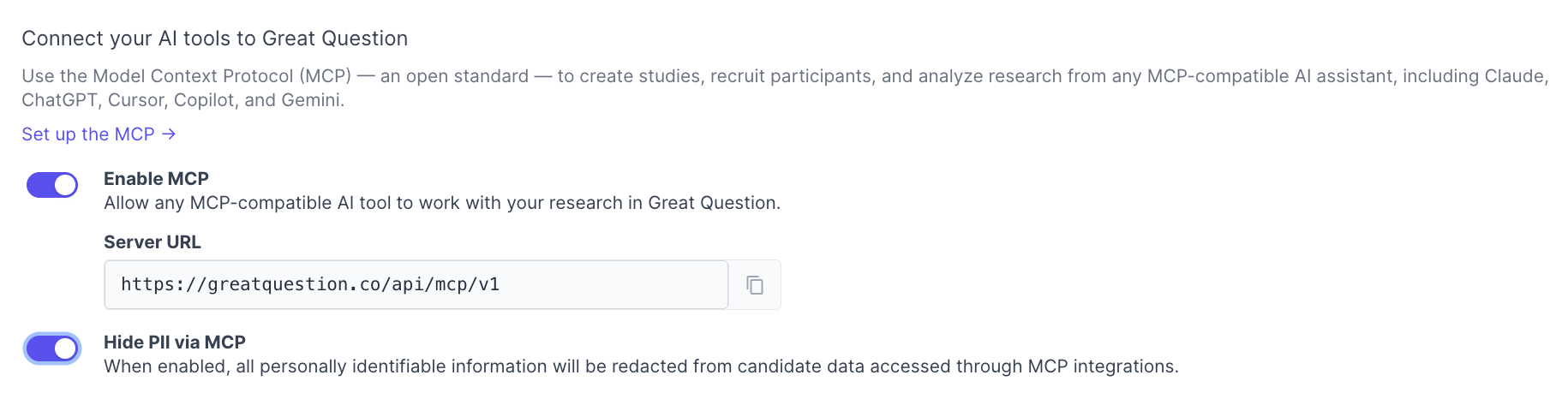
Claude Desktop
- Open Settings → Connectors → Add custom connector.
- Enter the name
Great Questionand the server URL above. - Click Save, then Connect. Authenticate via your browser.
- Restart Claude Desktop. Great Question tools will appear when you start a new chat.
Claude Code
Run in your terminal:ChatGPT/Codex Desktop app
- Go to Settings → Plugins → MCPs.
- Click + Add server, then enter:
- Name: Great Question
- Type: Streamable HTTP
- URL:
https://greatquestion.co/api/mcp/v1 - Leave other fields blank
- Click Save, and then authenticate.
Cursor
- Open Cursor Settings (Cmd/Ctrl + Shift + J), then select MCP from the sidebar.
- Click + New MCP Server to open your
mcp.jsonfile. - Add the following:
- Save the file, then click Connect on the settings page. Authenticate via your browser.
Copilot
There are two ways to connect your agent to an MCP server in Copilot Studio:- Add the MCP server in Copilot Studio by using the MCP onboarding wizard (recommended)
- Create a custom connector to your server through Power Apps
- Go to the Tools page for your agent.
- Select Add a tool.
- Select New tool.
- Select Model Context Protocol. The MCP onboarding wizard appears.
- Fill in the required fields Server name, Server description, and Server URL. Write a brief, but clear description of what your MCP server does. The agent orchestrator uses this information to identify whether to call your server at runtime.
- Server name: Great Question
- Server URL: https://greatquestion.co/api/mcp/v1
- Server description: Give the agent read and write access to Great Question’s research platform — studies, screeners, candidates, sessions, transcripts, highlights, and insights. Use it to create and configure interview, survey, and unmoderated studies, manage participants and recruitment, pull transcripts and screener responses, and search past research for findings and highlights. Feel free to adjust the server description as desired.
- Select the authentication type for your MCP server. Great Question requires authentication, so don’t choose None. Use one of:
- OAuth 2.0 (recommended): Great Question supports dynamic client registration. Configure OAuth 2.0 authentication
- API key: send a Great Question API token in the
Authorizationheader asBearer <token>. See Connecting an agent for how to create one. Configure API key authentication
- Create a new connection and add the MCP server to your agent.
- On Add tool, select Create a new connection for your MCP server or use an existing one.
- Select Add to agent to finish adding the MCP server to your agent.
Verifying your connection
Once connected, run through these quick checks in your MCP client:- See your studies. Ask for your recent studies. You should see titles, statuses, and IDs you recognize.
- Find participants. Ask for the participants in one of those studies. Names and emails should appear as expected, unless your admin turned on PII hiding for the MCP, in which case they’re masked.
- Pull a transcript. Ask for transcripts from that study, then request the full content of one. Look for speaker labels and timestamps.
- Connect the dots. Pick a participant and ask what sessions they had and what their transcripts say.
- Try a write action. Create a test candidate or draft study to confirm write access is working. You can delete it afterward. Write actions follow your role, so an observer’s test write may be refused.
- Try a repo session. Ask for recent repo sessions, pick one, and request its transcript.
Connecting an agent (no human login required)
Beyond the browser-based OAuth flow above, an agent can now connect to Great Question entirely on its own, without a person driving it. Give the agent a secure API token once, and it authenticates automatically in the background whenever it needs to, with no repeated logins and no OAuth window to click through. To set this up:- A workspace admin creates a token under Settings → API Tokens. This page is available to admins on plans that include API access.
- Copy the token immediately. The page shows the full token only if loaded within 20 seconds of creation; later page loads show a masked version. If you miss that window, revoke the token and create a new one.
- Configure the agent to send it with every request to the server URL above, in the
Authorizationheader asBearer <token>.
This is separate from the OAuth setup above, which is for a person actively using an MCP client. Use an API token when you want an agent to run unattended. For example, checking recruitment status overnight or applying a screener template as part of an automated workflow.
Troubleshooting
OAuth window doesn’t appear? Make sure your browser allows popups from your MCP client. Some browsers block the OAuth redirect by default. Tools not showing up? Restart your MCP client after saving the configuration. If tools still don’t appear, ask a workspace admin to check that MCP is turned on in Settings → AI & MCP. If the toggle is locked, MCP isn’t included in your plan; contact your Great Question account team. An agent’s API token stops working? Tokens expire one year after they’re created, and the admin who created the token can revoke it under Settings → API Tokens. Tokens can’t be rotated, so create a new one and update it in the agent’s configuration. Also check that MCP is still turned on for the workspace. Since the agent only sees what its associated user can see, also confirm that user’s permissions haven’t changed. Can I query against two different Great Question workspaces? Each MCP connector can only be linked to one workspace at a time. If you work across multiple workspaces, you have two options:- Use a single connector and re-authenticate when switching. Disconnect the connector and authenticate it again to point it at a different workspace.
- Create a separate connector for each workspace. When you create a connector, you can give it a name to make the workspaces easy to tell apart, for example:
GQ-product-labGQ-dtx