

SCIM provisioning is available on Enterprise plans and is enabled by request.
Why it matters
- Eliminate manual user management. Users are provisioned and deprovisioned automatically from your identity provider.
- Strengthen your security posture. When someone leaves your organization, their Great Question access is revoked immediately through your IdP.
- Give new hires access from day one. Users provisioned through SCIM can access Great Question as soon as they’re assigned in your identity provider.
- Keep roles and teams in sync. Map IdP groups to Great Question roles and teams so access stays consistent.
How to set up SCIM provisioning
Step 1: Generate a SCIM token in Great Question
- Click your name in the bottom-left corner and go to Settings.
- Open Governance > Security and click Configure next to SCIM configuration.

- Copy both the SCIM Endpoint (
https://api.greatquestion.co/scim/v2) and the bearer token.
Step 2: Create an app integration in your identity provider
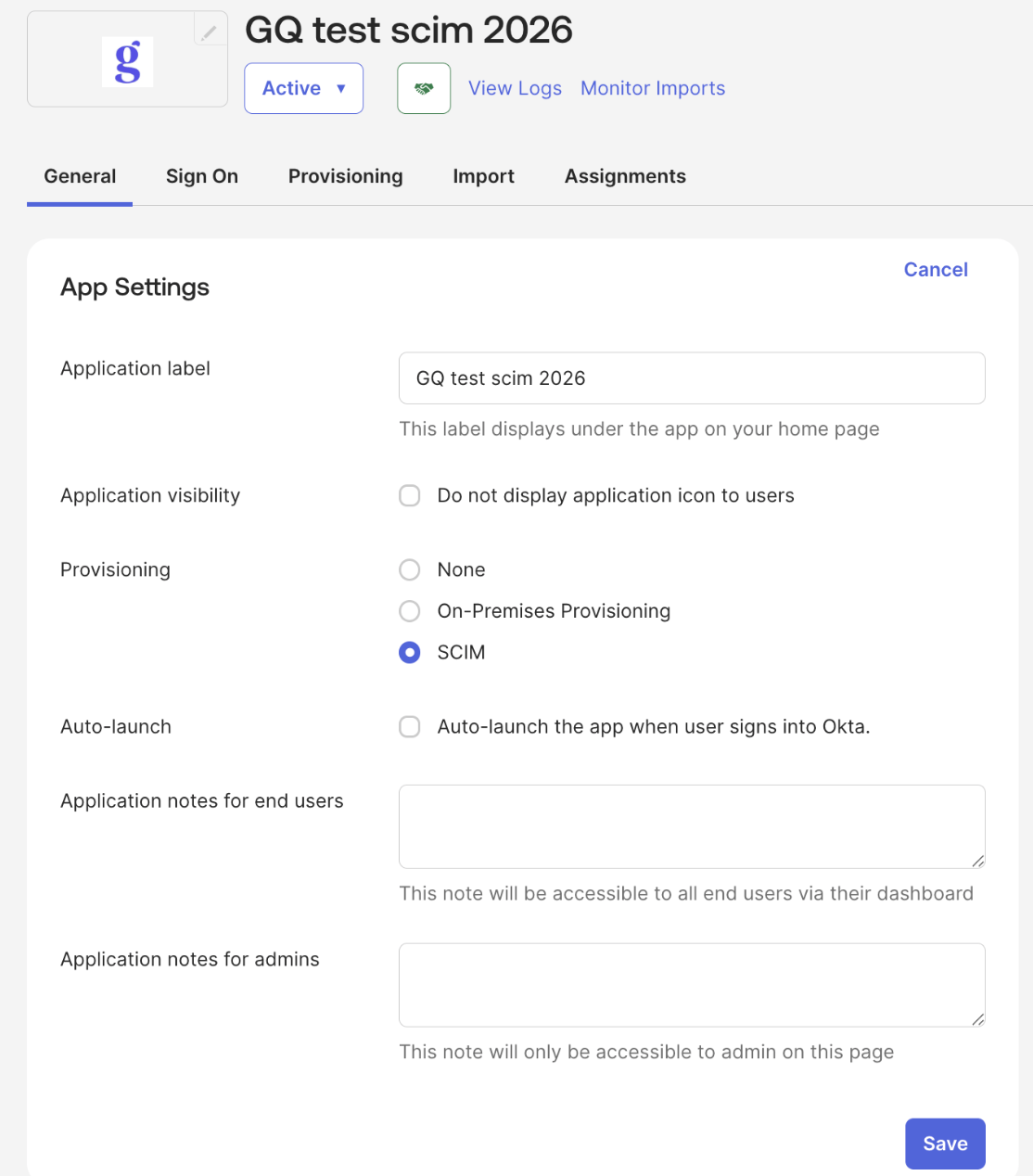
Create the app integration that will connect your IdP to Great Question (for Okta, this is a new SCIM app integration).Step 3: Configure SCIM in your identity provider
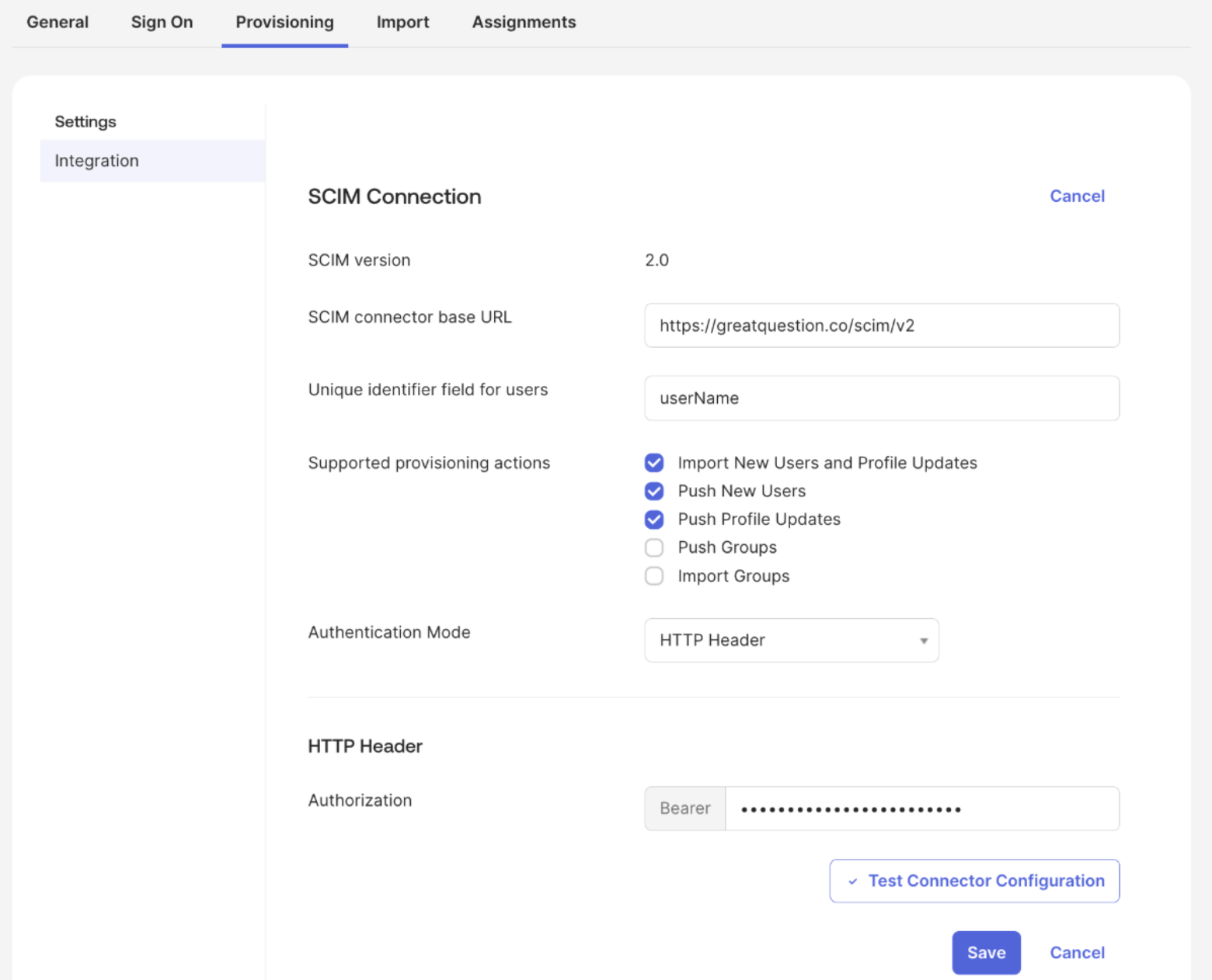
- Set the SCIM connector base URL to
https://api.greatquestion.co/scim/v2. - Set the unique identifier field to
userName. - Enable Import New Users and Profile Updates, Push New Users, and Push Profile Updates.
- Use HTTP Header (bearer token) authentication mode with the token from Step 1.
- Click Test Connector Configuration to verify the connection.
Step 4: Enable provisioning to the app
Turn on the provisioning actions in your IdP — Create Users, Update User Attributes, and Deactivate Users.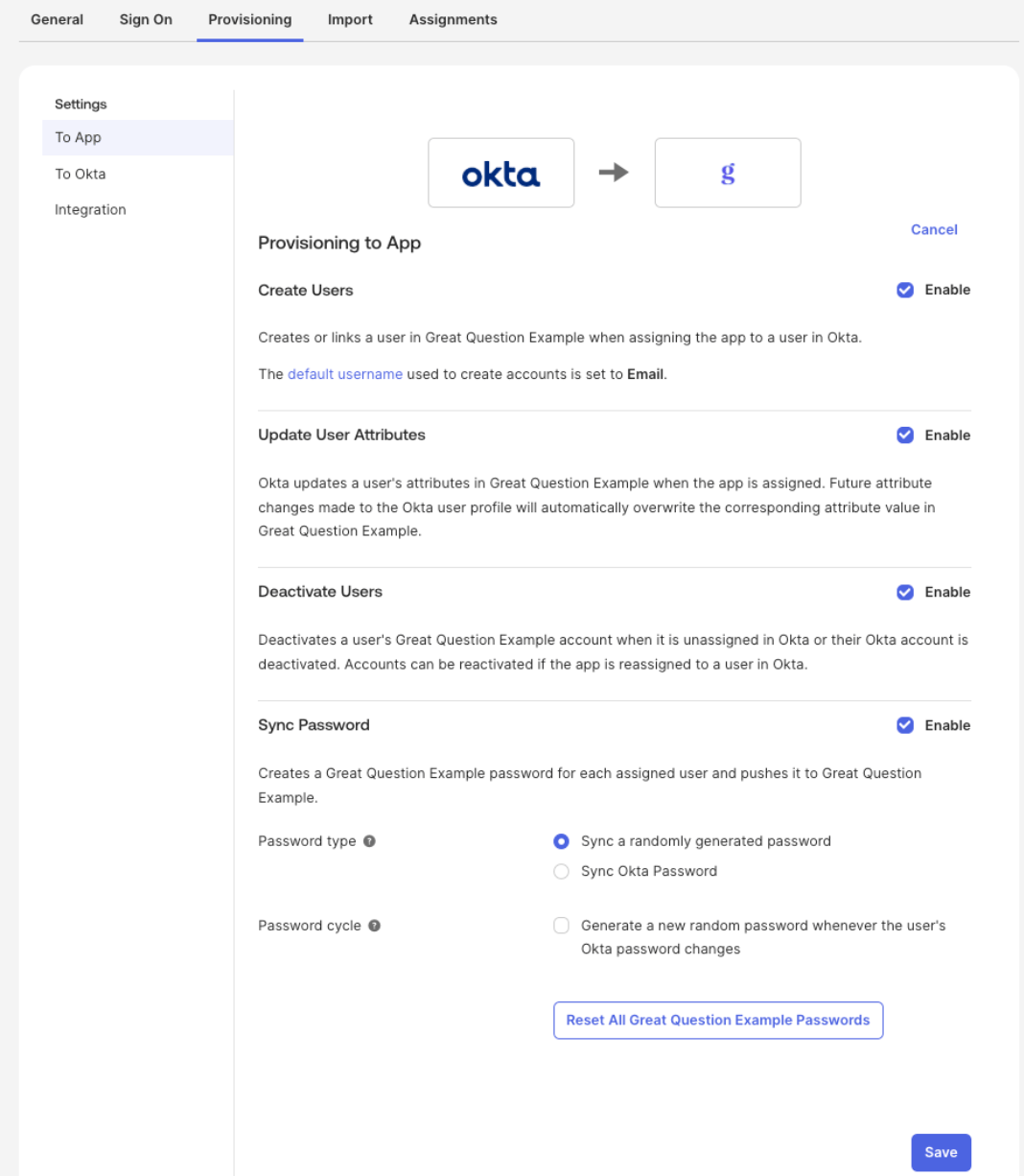
Step 5: Configure the default role and IdP-managed roles
- Choose the default role for users who don’t have a group-to-role mapping (Admin, Creator, or Observer).
- Enable IdP manages roles to have your identity provider control role assignments. When this is on, manual role changes in Great Question are overwritten at the next sync. Note: the account owner’s role can never be changed via SCIM.
- Groups map to roles or teams automatically.
Step 6: Assign users in your identity provider
Assign users to the application to provision them into Great Question.Step 7: Push groups (optional)
Contact your Customer Success Manager or support@greatquestion.co to enable and configure grouping.
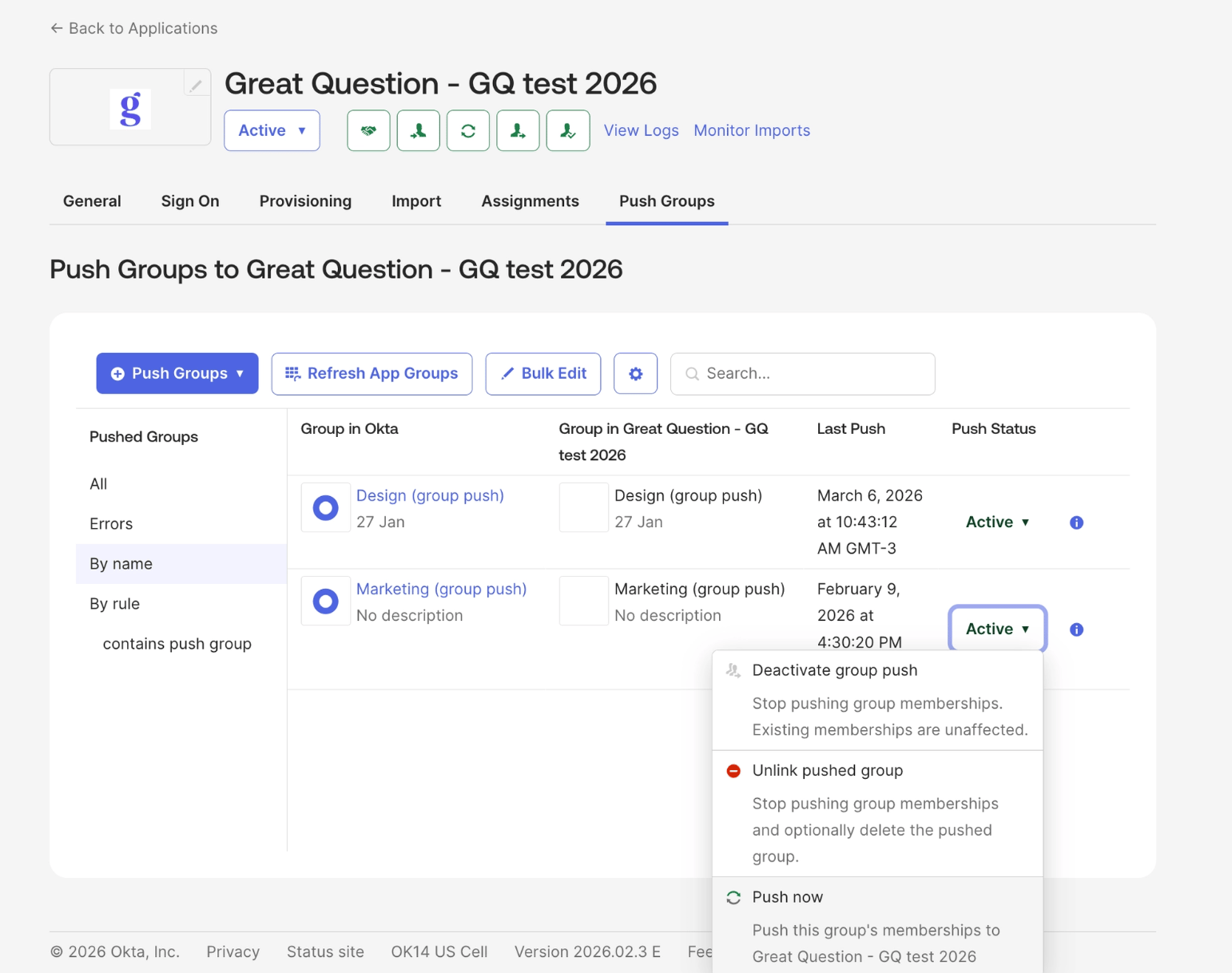
- In Okta, go to the Push Groups tab.
- Click Push Groups > Find groups by name.
- Search for and select the groups you want to push, then click Save.
Okta Group Push: Configuration Guide
There are two behaviors to be aware of when configuring Group Push with Great Question.Groups may arrive without members:
This happens when the same Okta group is used for both Application Assignment and Group Push. Okta may push the group before users are fully provisioned, resulting in an empty members list.Fix: Use two separate groups, one for Application Assignment and one for Group Push. Make sure users are provisioned before the group push runs.
- Application Assignment group — used only to provision users into the app
- Group Push group — separate group used only for pushing memberships to Great Question
Using the same group for both Application Assignment and Group Push is not supported by Okta. See About Group Push and Troubleshoot app assignment and group membership in Okta’s documentation.
Membership removals may not sync automatically:
When a user is removed from a group in Okta, the change may not immediately reach Great Question. This can happen depending on how users are assigned to the app, if assigned via group rather than directly, Okta may not send the membership removal event. The user may still appear as a group member until the next reconciliation.Fix: Trigger a manual sync from Applications → Push Groups → [select group] → Push Now.
SCIM Push Groups Troubleshooting Guide
Problem 1: “Unable to update Group Push mapping target App group” Error message:Failed: Unable to update Group Push mapping target App group mgmt-great-question-admin
Root cause: There is a stale push mapping in Okta for the group. The constraint error AppGroups.externalIdAndInstanceKey occurs when Okta tries to create a new mapping for a group that already has a conflicting record in the app instance.
Note: This error appears to come from Great Question’s side but is actually generated by Okta.
- In Okta, go to Push Groups
- Find the group with the error (e.g.
mgmt-great-question-admin) - Delete the existing push mapping
- Recreate the mapping — when the “Match result & push action” screen appears, select “Create Group” (not “Link Group”)
- Click “Push Now”
- Verify the group appears with the correct members at
https://greatquestion.co/governance/scim_groups
Automatic provisioning of user [X] to app Great Question failed: User account is inactive
Symptom: Users appear active in Okta, but SCIM only sends GET requests (lookups) and group updates — no PUT/POST to /Users. Without a POST/PUT, no SCIM link is created for the user on Great Question’s side.
Root cause: The “Deactivate Users” option under Okta’s SCIM provisioning settings was not enabled. Without it, Okta cannot properly sync the user’s lifecycle state with the app, which blocks provisioning.
Resolution:
- In Okta, go to Applications → Great Question → Provisioning → To App → Edit
- Enable “Deactivate Users” (in addition to “Push New Users” and “Push Profile Updates”)
- Save
- Reassign the affected users to the application (individually or via group)
Additional Notes Groups arriving without members is expected behavior. Groups and their members are synced in separate steps. Verifying group sync: Use
https://greatquestion.co/governance/scim_groups to confirm which groups are synced, how many members they have, and which role is mapped to each.
Edge Cases and Safeguards
- Seat limits. If your account reaches its seat limit during provisioning, the new user is assigned the Observer role regardless of their group mapping.
- Admin protection. SCIM cannot deprovision the account owner or the last remaining Admin on the account.
- Email auto-linking. If a user provisioned through SCIM already has a Great Question account with the same email, the existing account is linked to the IdP automatically.
- Pausing vs. disabling. Pausing SCIM unlinks users but keeps your token, group mappings, and settings intact for when you turn it back on. Fully disabling SCIM deletes all of that — you’ll need to redo setup from Step 1 if you turn it back on later.
Troubleshooting
Still need help? Contact us at support@greatquestion.co — median response time is 19 minutes during support hours.