Table of Contents

Observer Rooms

Gina Romero Updated by Gina Romero

Observer Livestreams

Watch live research sessions without distracting participants.

Observer Livestreams let teammates, stakeholders, and clients watch interviews in real time — without joining the call or being seen by participants. It's built into Moderated studies and powered by a Great Question Observer Bot that joins the meeting, streams the session live, and automatically records it to the repository.

What is Observer Livestreams?

When enabled, a Great Question Observer Bot joins the video call, streams the session to a private Interview Room, and captures a recording — all without disrupting the conversation between the moderator and participant.

Observers watch from a dedicated Interview Room page with a live video feed (with up to a 10-20 second delay for quality). Participants are notified that the session is being recorded and may be viewed by researchers, but they never see the observers or know how many are watching.

Why It Matters

Stakeholder alignment. Let product managers, designers, and executives watch sessions live without crowding the call.

Unobtrusive observation. Observers don't appear on camera or in the participant list, preserving a natural interview dynamic.

Automatic recording. When the call ends, the recording and transcript are automatically added to the repository — no manual uploads needed.

Flexible access. Observers can watch live or catch up later from the Interview Room.

Common Use Cases

Use Case

Description

Stakeholder observation

Let cross-functional team members watch live sessions without joining the call, keeping the interview intimate while broadening visibility.

Research team collaboration

Multiple researchers observe the same session in real time, enabling richer post-session debriefs and synthesis.

Executive buy-in

Give leadership direct exposure to customer voices by sharing a private livestream link — no scheduling logistics required on their end.

Training and onboarding

New researchers or team members observe experienced moderators in action to learn interviewing techniques.

Live note-taking

Dedicated note-takers watch the livestream and capture observations in real time without being present on the call.

How to Set Up Observer Livestreams

Step 1: Enable Livestream in Calendar Settings

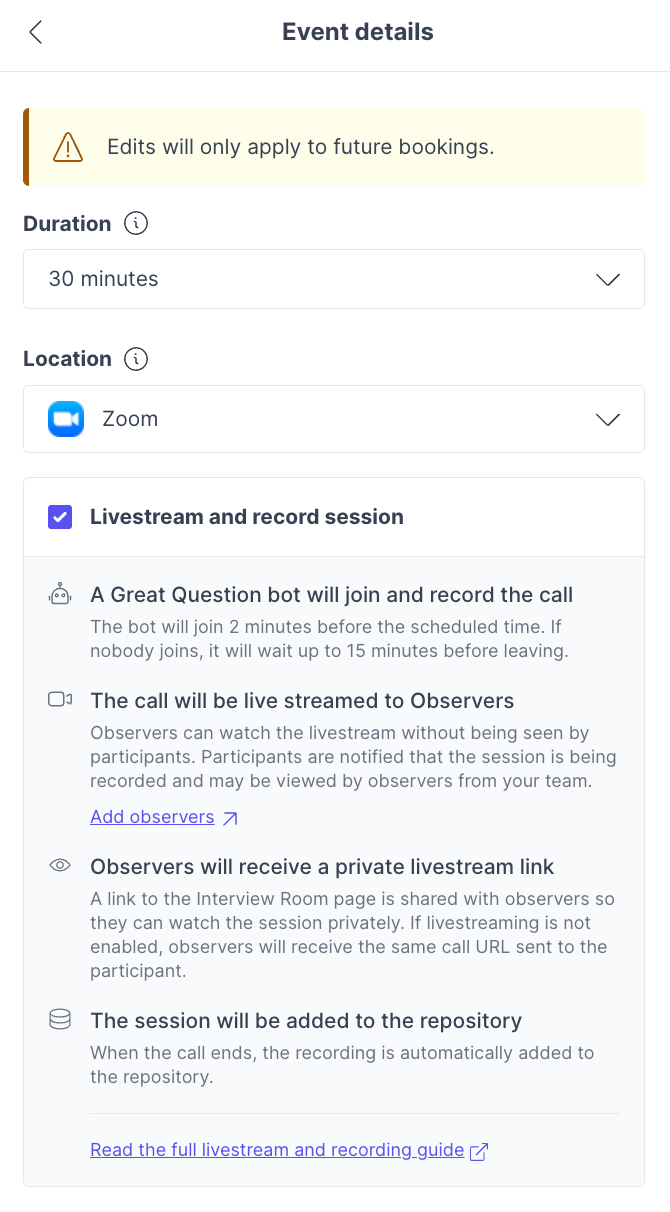
During the Calendar step of study setup, under Event details:

  1. Choose a supported video provider: Zoom, Google Meet, Microsoft Teams, Webex, or a Custom link (must match a supported provider URL).
  2. Check the Livestream and record session checkbox.
Livestream is not available for in-person locations or focus group studies.

When enabled, the following happens automatically:

  • The moderator receives two calendar invitations — one for the video call with the participant, and one linking to the Interview Room where the livestream will be viewable. This is expected behavior and cannot be consolidated into a single invite at this time.
  • A Great Question Observer Bot joins the call 2 minutes before the scheduled time. If nobody joins, it waits up to 15 minutes before leaving.
  • The call is livestreamed to observers from the Interview Room. Participants are notified that the session is being recorded and may be viewed by observers from your team.
  • Observers receive a private Interview Room link via calendar invite so they can watch privately. If livestreaming is not enabled, observers receive the same call URL sent to the participant instead.
  • The session is automatically added to the repository when the call ends.
Step 2: Add Observers

Under Attendees in the Calendar step, add team members as Observers. Each observer receives a calendar invite with a link to the private Interview Room — not the actual meeting link.

Enabling livestream after sessions are already scheduled only applies to future bookings. Use this per-session override for existing bookings.

Livestream Settings Per Session

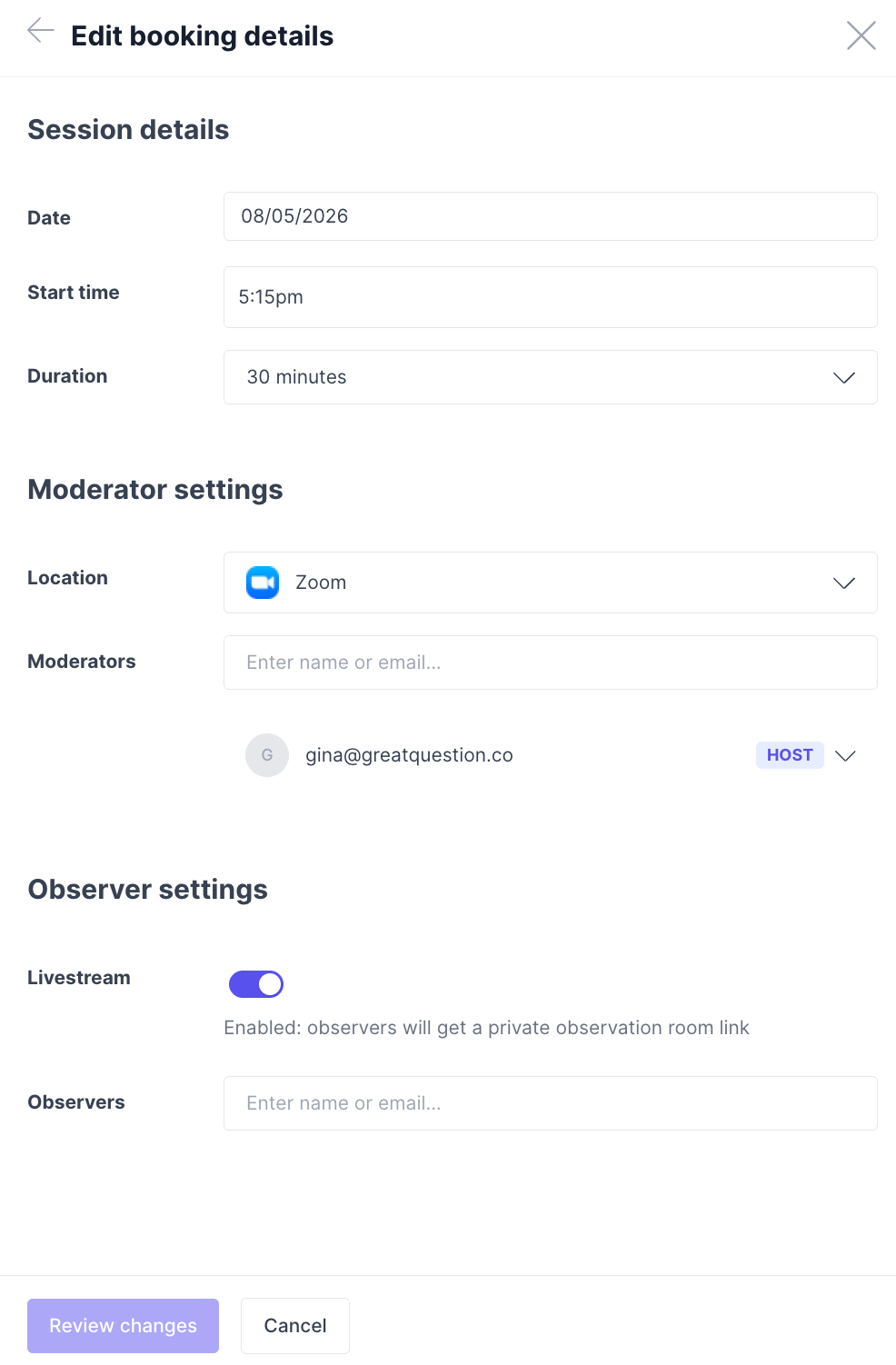
After publishing, you can enable or disable livestream for individual sessions:

  1. Go to the Participants tab.
  2. Open the booking details for a specific participation.
  3. Under Observer settings, toggle Livestream on or off for that session.
  4. Add observer email addresses if needed — they'll receive a calendar invite with the Interview Room link.
Configure Share Settings

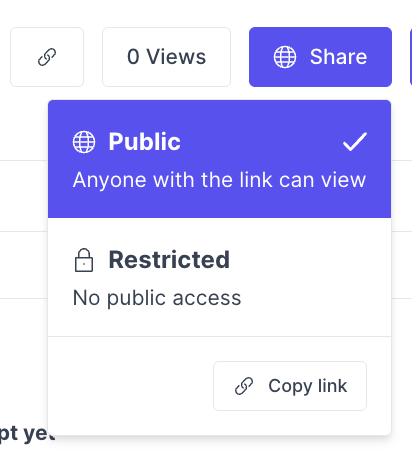
For observers who don't have a Great Question account, set the Interview Room's share settings to Anyone with the link can view. Admins can set this as the org-wide default under Settings → Permissions.
The Livestream Experience

For Moderators

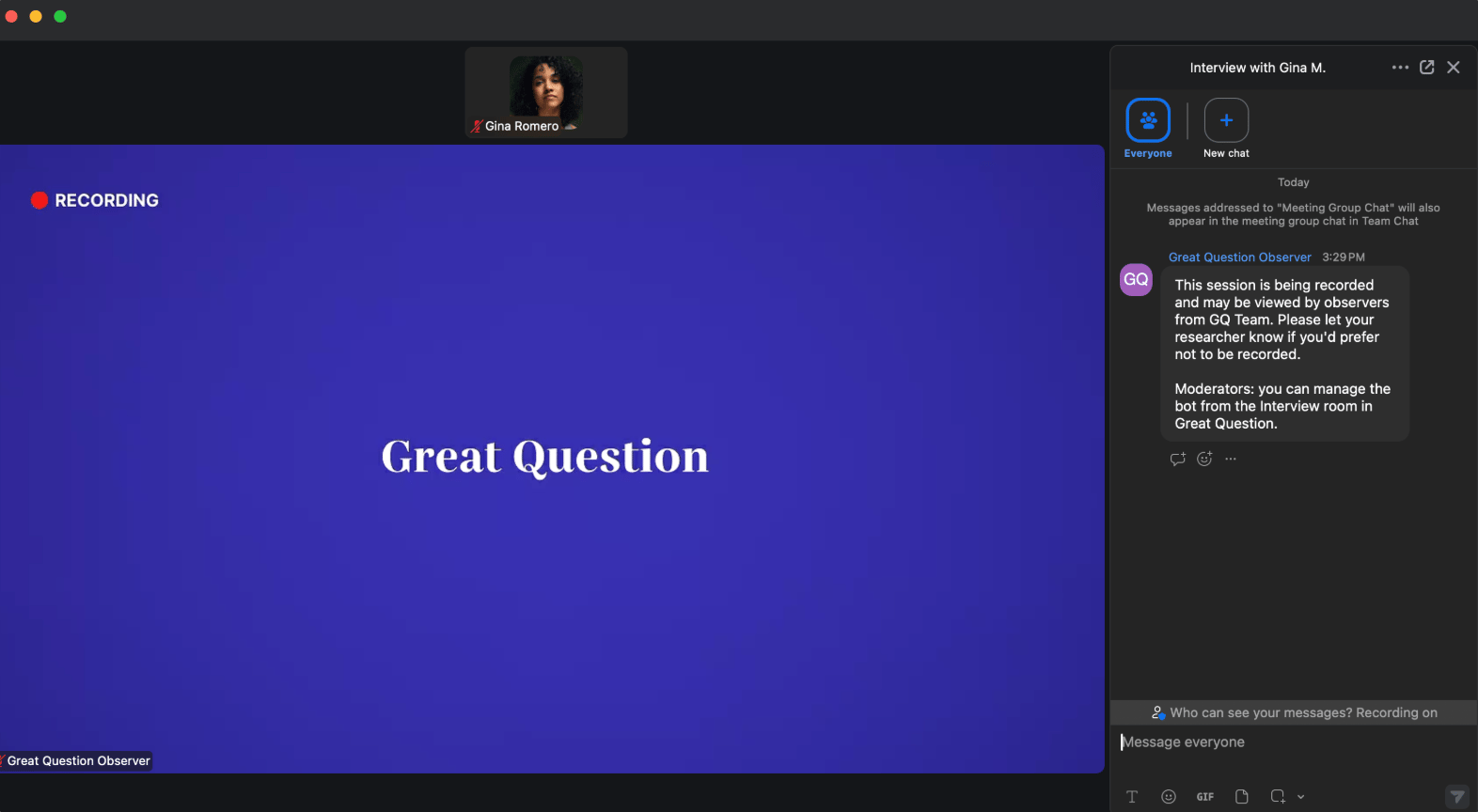
Moderators conduct the interview as usual on the video call. The Observer Bot joins automatically 2 minutes before the scheduled start time and appears as "Great Question Observer" in the meeting. The moderator should:

  • Admit the bot from the waiting room (if applicable).
  • Grant recording permission when prompted — the livestream won't begin until the bot has permission to record.

Once the bot is recording, the session is live. Moderators can monitor the livestream status from the Interview Room page:

Status

Badge Color

What It Means

Initializing

Gray

Livestream is being set up for this interview.

Not Enabled

Gray

Livestream hasn't been enabled for this interview.

Upcoming

Yellow

The interview is set up to be livestreamed, but the call hasn't started yet.

Joining

Yellow

The Observer Bot is joining the call to start the livestream.

Pending

Yellow

The Observer Bot is waiting for access (e.g., in the waiting room) to start the livestream.

Live

Green

The livestream is in progress.

Done

Green

The livestream has ended.

Importing

Gray

The recording is being imported and prepared.

Uploading

Gray

The recording is being uploaded.

Error

Red

There's an issue with the livestream. Check the Interview Room for details.

If the bot encounters an issue, moderators can re-send the Observer Bot from the Interview Room page.

A pre-stream check runs automatically when the session is created, validating that the meeting URL is accessible and the video provider settings are compatible. If issues are detected, you'll see a warning in the Interview Room and receive an email notification with details.

For Observers

Observers watch the session from a private Interview Room page. Here's what to expect:

  • Before the call starts: A placeholder message reads "The Moderator hasn't started the call yet. Once the call starts, an Observer Bot will enter the call waiting room until the Moderator lets them in."
  • Bot in waiting room: The status updates to "The Observer Bot is in the waiting room, but hasn't been let in yet."
  • During the livestream: The live video feed plays automatically (muted by default). A delay of up to 10-20 seconds is applied to maintain quality and smoothness.
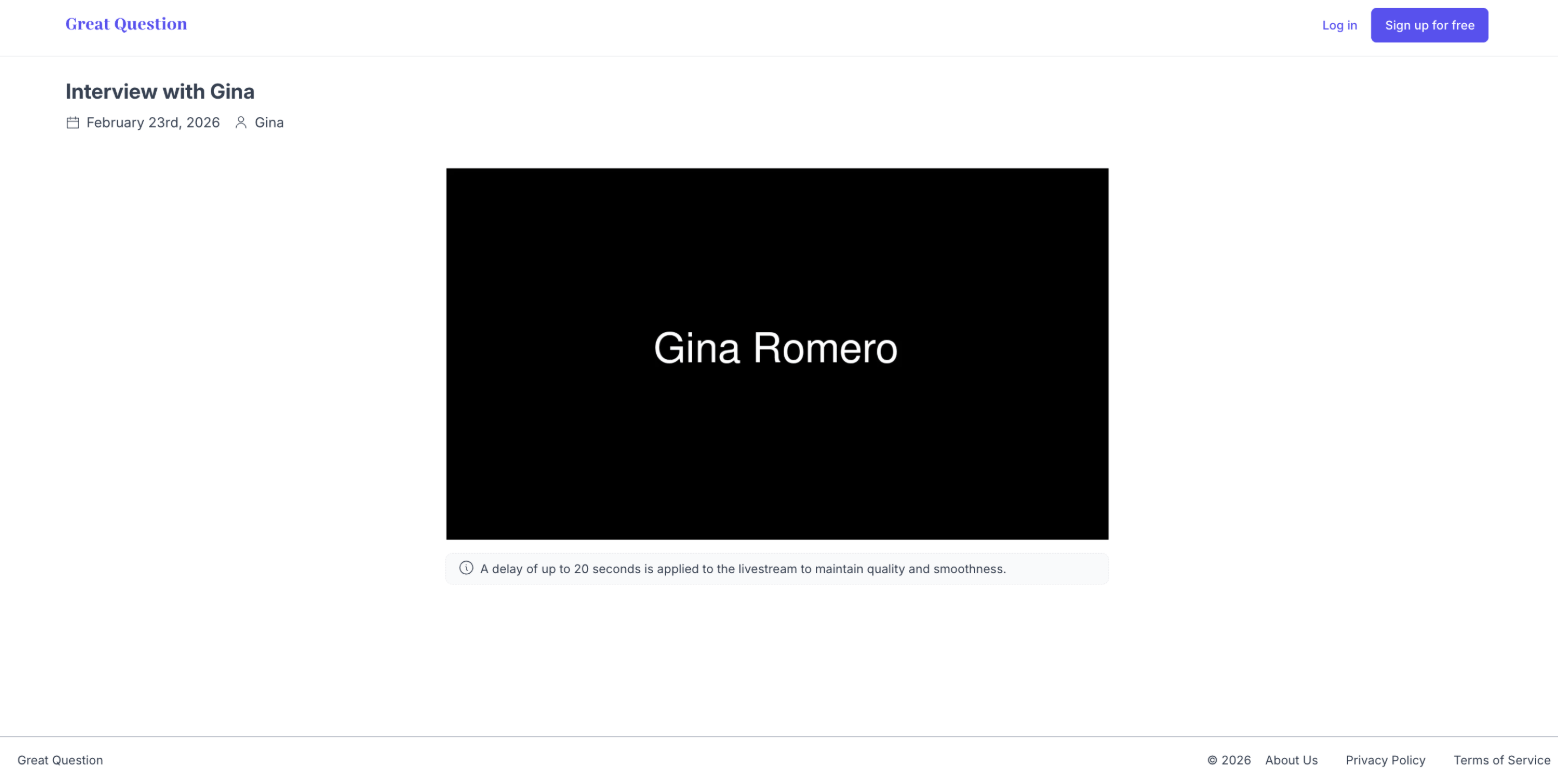
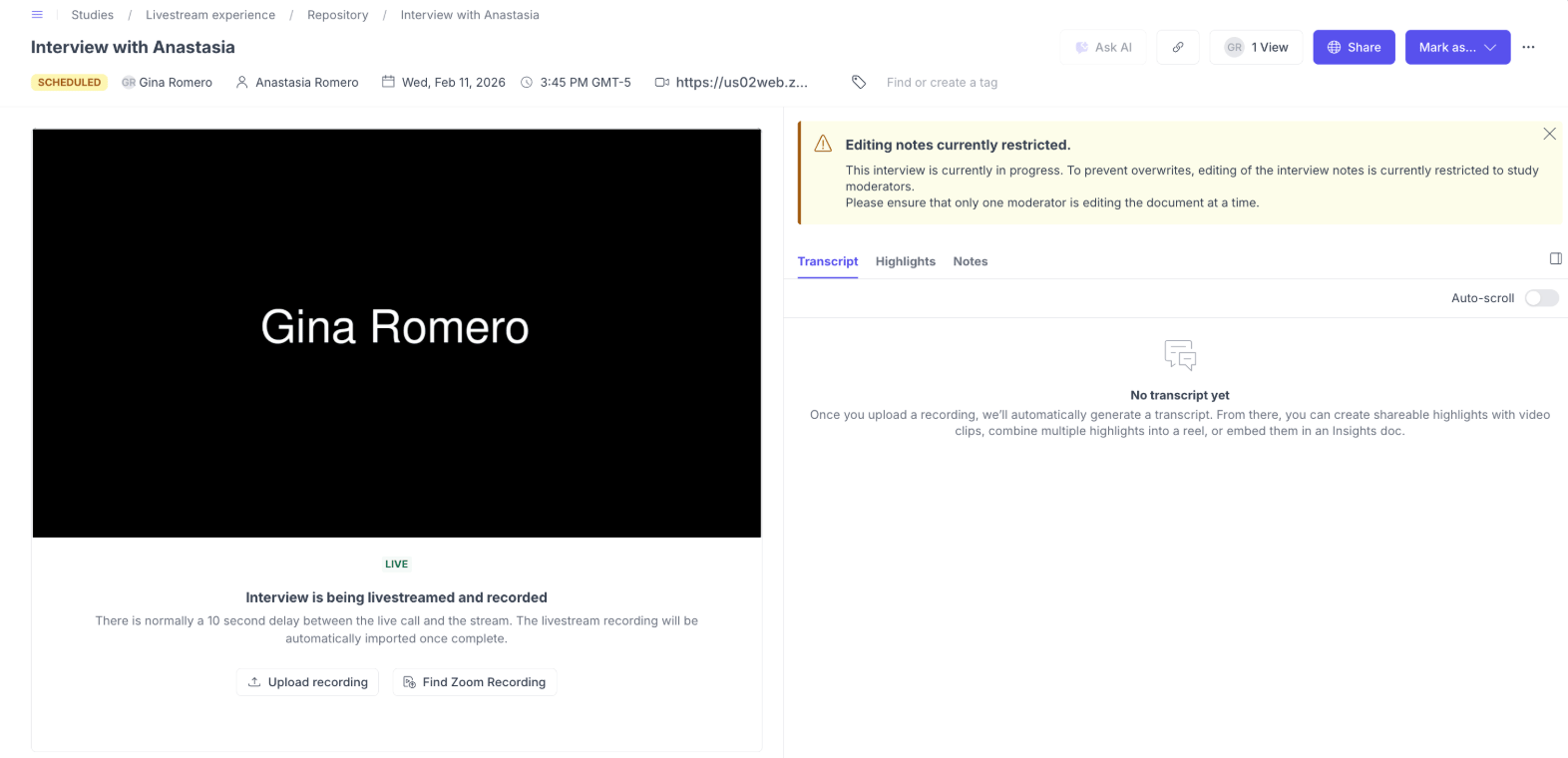
Observer room as a non-logged in user:

Observer room as a logged in user:

  • After the call ends: The recording becomes available for playback once processing completes.

Observers can access the Interview Room via:

  • The calendar invite they received when added as an observer.
  • A direct link to the Interview Room shared by the study creator.
  • A public share link, if one has been generated (no login required).
For Participants

Participants see the Observer Bot join the call as "Great Question Observer." They are informed that the session is being recorded and may be viewed by researchers. Observers are never visible to participants.
Best Practices

Before the Session

Test your video provider settings ahead of time. Make sure the moderator's account allows bots and guests to join. Pay special attention to waiting room and recording permission settings — this is the most common reason livestreams fail.

Use the pre-stream check. Review any warnings in the Interview Room page before the session starts. If the pre-stream check flags an issue, resolve it before the call begins.

Share the Interview Room link with observers early. Observers should know where to go before the call starts so they don't miss the beginning. A quick heads-up also prevents the common mistake of clicking the moderator's meeting link instead of the observer link.

Enable reminder automations. Turn on interview reminders in the study's Automations tab so both moderators and participants show up on time.

During the Session

Admit the Observer Bot promptly. If the bot lands in a waiting room, let it in quickly so observers don't miss content.

Grant recording permission immediately. The livestream won't begin until the bot has permission to record. Recording and livestreaming are linked — if recording is denied, the livestream stops.

Don't remove the bot from the call. If the bot is kicked or removed, the livestream and recording will stop. If this happens accidentally, use the Re-send Observer Bot option in the Interview Room.

After the Session

Wait for the recording to process. After the call ends, the recording is imported and transcribed automatically. This may take a few minutes for longer sessions.

Use the repository for synthesis. Recordings, transcripts, highlights, and tags are all available in the repository for collaborative analysis.

Video Provider Requirements

Provider

Requirements

Zoom

Enable local recording in your Zoom settings. Allow participants to request recording permission. Ensure web joining is allowed. Zoom Webinars are not supported.

Google Meet

Allow guest access (no sign-in required).

Microsoft Teams

Enable anonymous access for the meeting so the bot can join without sign-in credentials.

Webex

Ensure the meeting is configured to allow external participants to join without restrictions.

Troubleshooting

Bot and Streaming Issues

Issue

What's Happening

How to Fix It

Observer Bot never joins the call

The meeting link may be invalid, expired, or the meeting hasn't started yet.

Check that the meeting link in the booking details is valid and active. If the link has expired, update it. The bot joins 2 minutes before the scheduled time — make sure the call is started around the scheduled time.

Bot is stuck in the waiting room

The moderator hasn't admitted the bot yet, or the waiting room timed out.

The moderator should look for "Great Question Observer" in the waiting room and admit it. If the bot timed out, use Re-send Observer Bot from the Interview Room.

Bot was removed from the call

Someone kicked the bot from the meeting or waiting room.

Use Re-send Observer Bot in the Interview Room. Make sure all meeting participants know not to remove the bot.

Livestream never goes live

The bot joined but recording permission was not granted.

The moderator must accept the recording permission request. For Zoom, ensure local recording is enabled in the host's account settings and the advanced option to allow participants to record locally is turned on.

Recording permission denied

The host's video provider settings don't allow the bot to record.

Zoom: Enable local recording and allow participants to request recording permission. Google Meet: The host should accept any recording prompts. Re-send the bot after updating settings.

Stream quality or delay issues

The livestream has up to a 20-second delay by design.

This is expected behavior to maintain stream quality and smoothness. The delay cannot be reduced.

Recording and Post-Session Issues

Issue

What's Happening

How to Fix It

Recording not available after session

The recording is still being processed, or the bot failed before recording started.

Wait a few minutes — long sessions take longer to process. If the livestream status shows Error, the bot may not have captured a recording. You can upload a recording manually from the Interview Room.

Transcript missing

Transcription is still processing or the recording had issues.

Wait for the recording to finish processing. If the issue persists, contact [email protected].

Livestream option not available

The feature may be disabled at the account level, the study uses an unsupported location type, or the study is a focus group.

Livestream requires a supported video provider (Zoom, Google Meet, Microsoft Teams, or Webex). It's not available for in-person locations or focus groups. Check with your account admin to confirm the feature isn't disabled.

Still need help?

Reach out to us anytime in the app or email us at [email protected].

How did we do?

Consent Forms

External Recruitment | User Interviews

Contact