

What is the Studies page?
The Studies page lists the studies in your workspace, and each team has its own studies page for its studies. A new version of the page is rolling out alongside the classic one. It shows every study as a row in one table, and you decide which columns appear, in what order, and how they’re sorted. Filters, search, and column setups can be saved as views, so you can come back to the same list in one click. Each person chooses for themselves whether to use the new version. Switching doesn’t change anything for anyone else in your workspace, and you can go back to the classic page at any time.The new Studies page is rolling out gradually. If you don’t see Try the new studies page next to the Studies title, it isn’t available on your account yet.
Why it matters
Set up the table your way. Show the columns you care about, drag them into the order you want, resize them, and freeze the ones you need to keep in view. Keep the setup you use. Save your filters, search, columns, and sort as a view, then share it with your workspace or keep it to yourself. Find studies faster. Combine filters across owners, people, participants, incentives, dates, and custom fields, and choose whether a study has to match all of them or any of them. Act on many studies at once. Select studies and change their owner, team, or status, archive them, or delete them in one step.Common use cases
How to try the new Studies page
- Go to Studies.
- Click Try the new studies page next to the Studies title.
- A welcome message explains what’s new. Click Got it to start using the page.
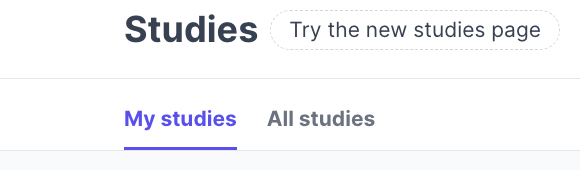
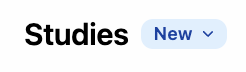
The Try the new studies page option only appears on the main Studies page, not on a team’s studies page. Once you switch, team studies pages use the new table too.
Switch back to the classic page
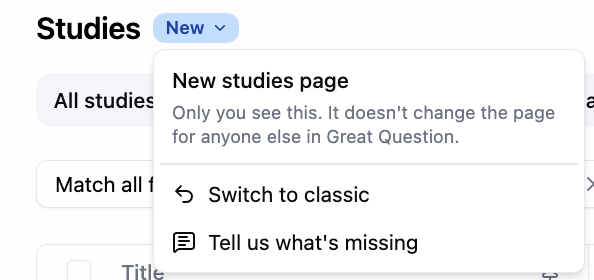
- Click the New badge next to the Studies title.
- Select Switch to classic.
- Optionally, tell us what made you switch back, then click Switch back.
What carries over from the classic page
The first time you open the new page, it picks up the sort, filters, and columns you last used on the classic page in the same browser. A few classic filters don’t carry over, including filters set to match “any” condition. If your workspace’s classic default was the My studies tab, the new page opens on My studies too.Finding studies
Search
Click the search icon next to the title, or press Cmd+F (Mac) or Ctrl+F (Windows), and type. Search matches a study’s title, summary, and goal. Press Esc to clear your search.Views
The tabs above the table are views. Every workspace has two built-in views:
Saved views appear as more tabs. A lock icon means the view is personal and only you can see it. A dot on a tab means you’ve changed its filters or search since it was saved. To see every view, including ones that don’t fit in the tab row, click All views.
Filters
Click Filter and pick a field. You can search the list or browse it by group:
Goal and Title are also available as filters. People filters list Me first, so you can quickly find studies you own, created, or moderate.
Applied filters appear as chips below the toolbar. Click a chip to change it, click + to add another filter, or click Clear all to remove them. When you have two or more filters, choose Match all filters or Match any filter. The number of matching studies shows next to the Filter and Display buttons.
For date filters, type a date in your browser’s usual format (for example, MM/DD/YYYY), or use is within the last or is older than with a number of days.
Customizing the table
Click Display to change how the table looks. Sort by sets the sort column and direction. By default, studies are sorted by Updated, newest first. Show archived studies adds archived studies to the list. Columns lists every available column. Check a column to show it, uncheck it to hide it, or drag it by its handle to reorder. Click a column’s options menu to sort by it, move it, freeze it, or hide it. Reset column widths restores the app’s default column widths. Reset display restores the view’s saved display settings. You can also work with columns directly in the table:- Drag a column header to move it.
- Drag the right edge of a header to resize it, or double-click the edge to fit the column to its content.
- Click a header to open its menu.
Columns
By default, the table shows Title, Status, Type, Owner, Progress, and Updated. You can add any of these from Display:
A few columns are worth knowing about:
Progress shows completed participants against the study’s target, for example 3/10. If the study has no target, it shows the number completed, for example 3 completed. Studies that haven’t started show a dash.
Team shows the team the study belongs to, or Workspace if it isn’t affiliated with a team.
Moderators and Collaborators show up to three avatars, then a count of the rest.
Incentive shows the study’s incentive in its own currency. Funding, Paid out, and Recruitment fees are shown in US dollars.
Hover over a study’s title to see a summary card with details that aren’t already in your visible columns, such as its owner, progress, goal, and key dates.
Funding, Paid out, and Recruitment fees are only available to Admins and Creators. Observers don’t see these columns or filters. See User roles and permissions.
Where your setup is saved
Changes you make to filters, search, and columns are remembered in your current browser. To keep a setup across devices, or to share it, save it to a view. When you open the studies page, it starts from the first of these that applies:- Your own default view
- Your workspace’s default view, if an Admin has set one
- The setup you last used in this browser
- The built-in default
Saving views
Save changes to a view
When you change the filters or search, a Save menu appears at the end of the filter row:- Save to view updates the view you’re on.
- Save as new view saves your changes as a new view and leaves the original as it was.
Create a new view
- Click + (New view) at the end of the tab row.
- Enter a Name and, optionally, a description.
- Under Who can see it, choose Only me or Everyone.
- Click Save.
Edit or delete a view
Select the view’s tab, then click the pencil icon on it. You can change the name, description, and who can see it. To remove the view, click Delete, then Delete view to confirm. Deleting a view never deletes the studies in it.Set a default view
Click All views, find the view, and select Make default. Admins can also choose Make default for everyone on shared views, so everyone in the workspace lands on the same view. Your own personal default always takes priority over the workspace’s.Who can do what with views
You can also manage views from the Manage views link at the bottom of the All views list.
Working with studies
Open a study
Click a row to open the study. Hold Cmd (Mac) or Ctrl (Windows) while clicking to open it in a new tab. Draft studies open in the study builder so you can keep setting them up.Row actions
Click the ⋯ menu at the end of a row, or right-click the row, to see what you can do with that study. You’ll only see actions your role allows for that study.
Most actions ask you to confirm and explain what will happen first. For example, pausing a study shows its participant page as closed until you unpause it, and archiving it removes it from the list until you turn on Show archived studies. After pausing or unpausing, you can click Undo in the confirmation message.
Close opens a review before anything changes. It shows what will happen to participants who haven’t finished (mark them completed or cancel them) and where any unused incentive funds will go. Nothing happens until you confirm.
Bulk actions
- Check the box next to each study you want. To select every loaded study, check the box in the header. If more studies match and there are 100 or fewer matches, click Select all to include them. To use Select all when more than 100 studies match, narrow the list with filters first.
- Click Actions in the toolbar that appears.
- Choose an action. Status actions such as Pause, Close, and Archive are under Change status.
- Review the confirmation or fill in the form, then confirm.
You can delete or close up to 25 studies at a time. If you select more than 25, you’ll see a message saying so. Select fewer studies and run the action again for the rest.
Team studies pages
Each team’s studies page uses the same table, limited to that team’s studies. Everything above works the same way, except that the Team filter isn’t offered, and New study creates the study in that team. Team pages share the same saved views as the main Studies page, and they remember your column setup separately. To switch back to the classic page, go to the main Studies page and use the New badge there.Best practices
Save the lists you check often. If you look at the same filters every week, such as your active studies or studies waiting on approval, save them as a view instead of rebuilding them each time. Save before you switch devices. Your column setup is remembered in the browser you’re using. Save it to a view if you want the same setup on another computer. Give your workspace a shared starting point. Admins can create a shared view with the columns your team relies on and make it the default for everyone. People can still set their own personal default on top of it. Use Close to settle a study properly. The Close review shows how participants and leftover incentive funds will be handled, so read it before you confirm, especially when closing several studies at once. Tell us what’s missing. If something you rely on in the classic page isn’t here yet, use Tell us what’s missing in the New badge menu, or let us know when you switch back.Troubleshooting
Still need help? Contact us at support@greatquestion.co — median response time is 19 minutes during support hours.