

This is one of two AI moderation formats Great Question offers — see the AI Moderation overview for how this compares to a standard AI Moderated Interview.Prototype testing here supports any publicly accessible prototype or website, not just Figma, for example a prototype hosted on Magic Patterns, a site deployed on Vercel, or your own live site. If a participant’s browser can reach the URL, it can be tested.
Why It Matters
Get the “why” behind the click. Pair the task itself with real-time reasoning from the AI moderator, without scheduling a live moderator. Scale without scheduling. Run far more sessions than you could moderate live, at any hour, without coordinating calendars. A single, seamless flow. Participants get one continuous experience, invite, consent, and task, not two separate systems bolted together. Nothing else changes. Recruitment, screening, consent, and incentives all work exactly the way they do for any other study.Common Use Cases
Set Up an AI Moderated Prototype Test
Step 1: Create the Study and Choose “AI moderated prototype test”
- Click New study.
- In the Agentic section of the Create new study page, select AI moderated prototype test (marked Beta). The prototype/website task is configured inside the studio in Step 2.

- Give your study a name and continue, just as you would for any other study, enable external recruitment, screener, consent, and incentives if desired, and go through that normal setup as well.
Step 2: Design the Prototype Task in the Studio
AI-moderated prototype tests are designed in the Great Question studio, same entry point as any AI Moderated Interview.- On the study’s AI Moderated Interview step, click Open studio after entering your research goal.
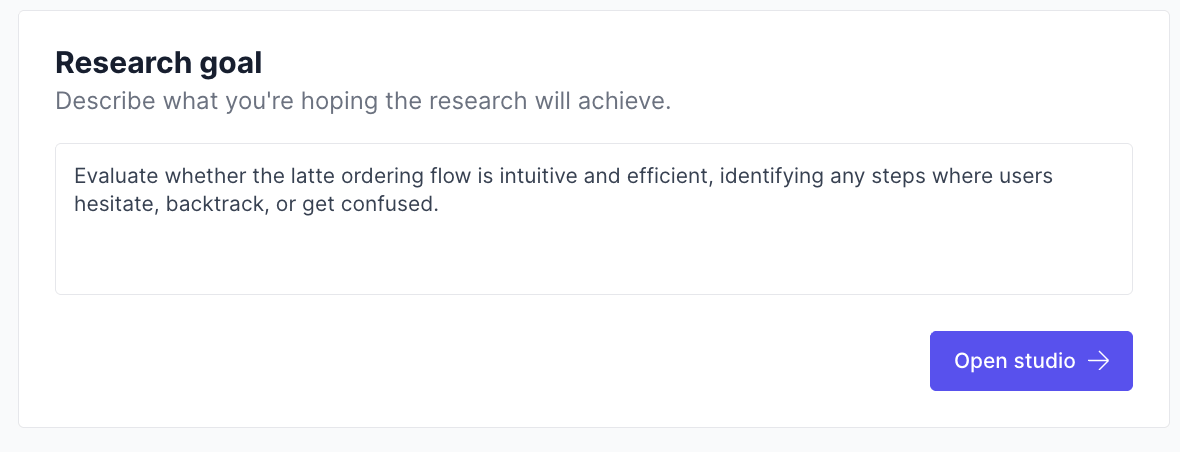
- You’ll be taken straight into the studio, already signed in, no second login. The studio workspace is organized into four tabs: Setup (build and edit the test), Responses (each session’s raw responses as they come in), Analysis (results aggregated question by question, grouped by prototype test), and Report (the AI-generated study analysis report). See How the Studio Works below for what each tab shows.
- This is where the prototype-specific setup happens: when asked, paste the link to the prototype or website you want participants to work through. Any publicly accessible URL works, Figma prototypes, prototypes hosted on Magic Patterns or Vercel, or your own live site.
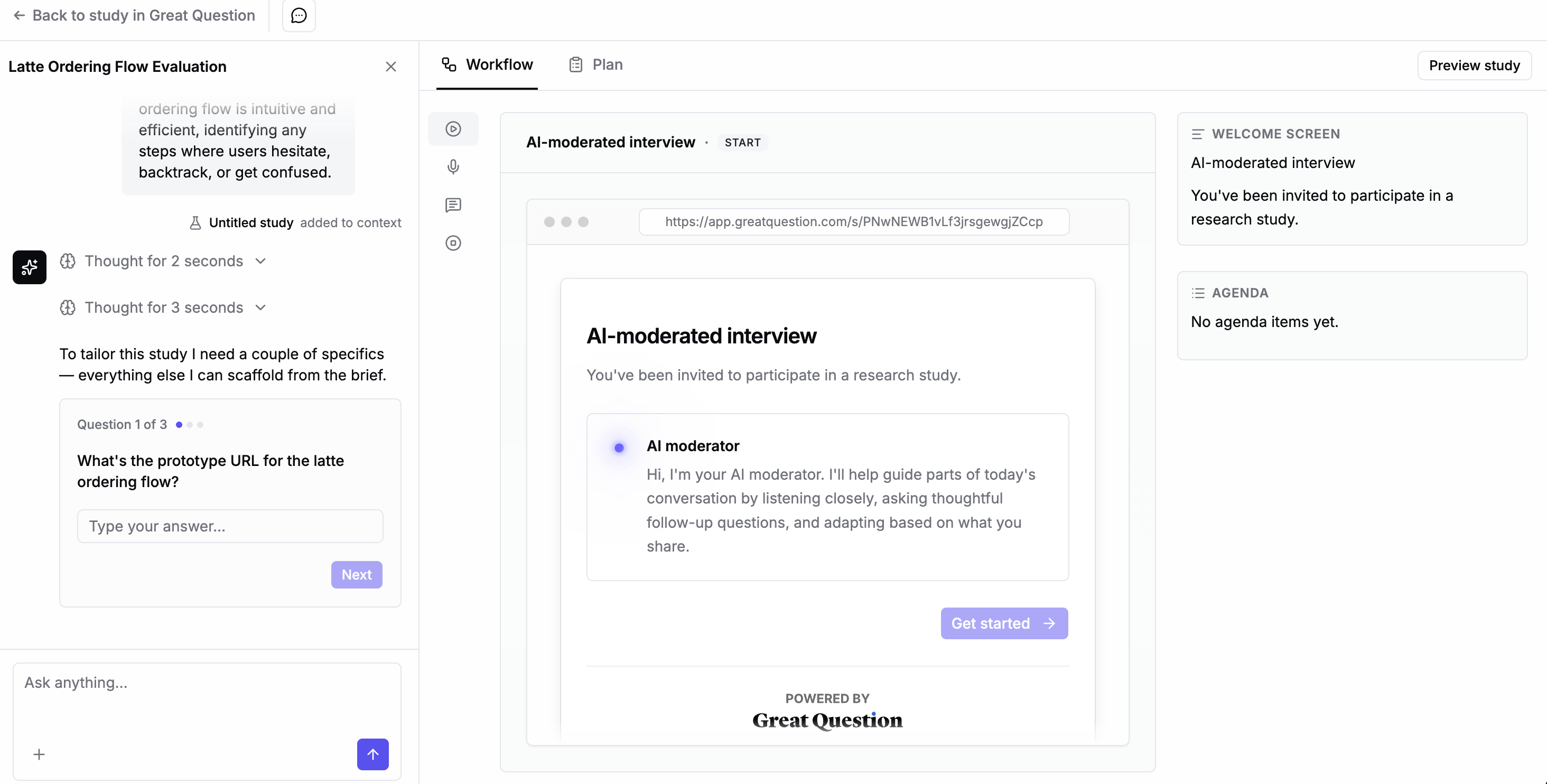
- Build the rest of your moderated task using the guided creation flow: describe what you want to learn with your research goal, and refine the questions the AI will ask as participants navigate your prototype. The flow runs as a chat beside the canvas: the chat picker in the studio’s top bar lists the study’s five most recent chats and can start a new one, and you can close the chat panel (from its header, or by dragging its resize handle all the way left) to give the canvas the full width. Reopening resumes the same conversation.
- Preview the test to experience it exactly as a participant will, including the live AI moderation. Previews don’t record anything or save any results.
- When you’re happy, return to Great Question by clicking Back to study in the top-left corner.
Tip: You can click Open studio again anytime, including after launch, to tweak the URL or the questions. Great Question will keep showing the latest version of what you built. Deleting a step also permanently deletes any responses collected for it.
Step 3: Review What You Built, Back in Great Question
Once you’ve authored the test, your study’s AI Moderated Interview step shows an Open studio button to jump back in and make edits, plus the outline of what you created. This stays in sync with the studio automatically, so what you see in Great Question always matches the live test.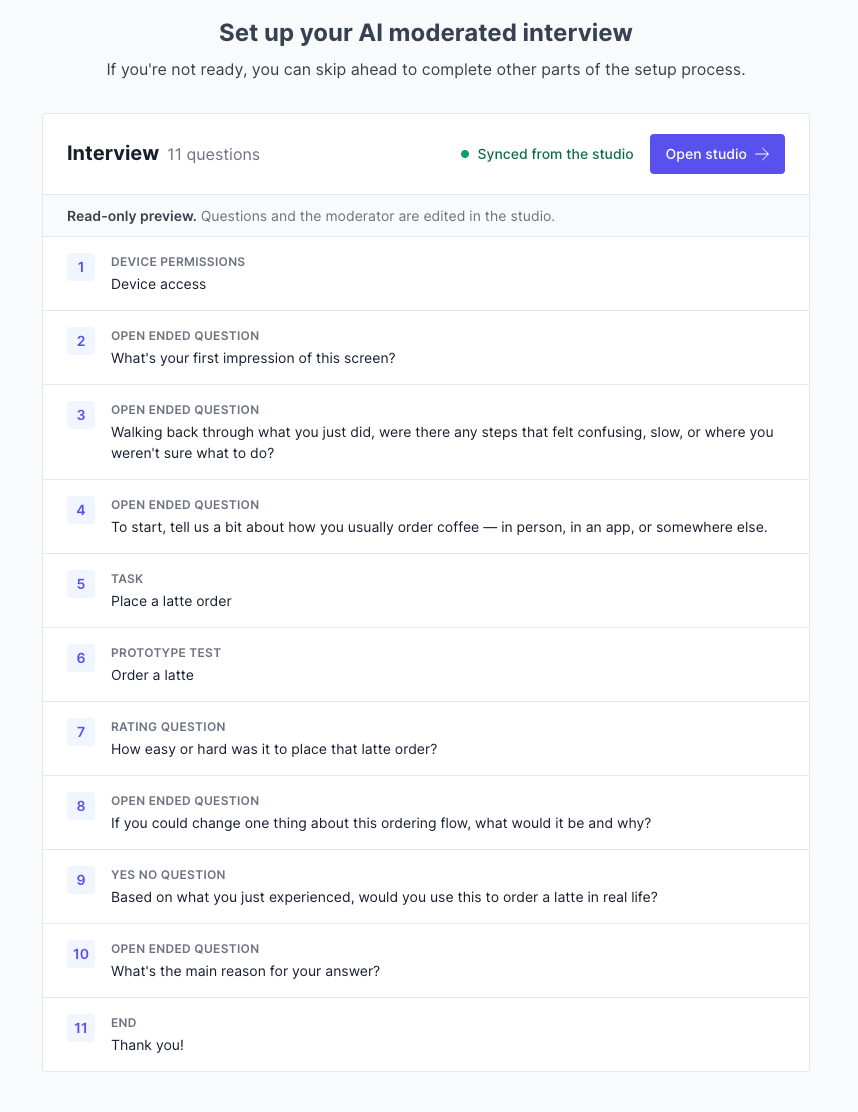
Step 4: Review and Publish
Check all sections for accuracy. When ready, click Create to publish your study.What Your Participants Experience
For your participants, it’s one continuous study, they don’t need an account and have nothing to install. Here’s the journey end to end:- They get your invite. The same invite you’d send for any study, using your recruitment, screener, and incentive settings.
- They open it in Great Question. They land on your study page, where they’re recognized from their invite link and give consent, just like a normal study.
- They work through the prototype, moderated by the AI. From there they move straight into the task: one welcome, the AI asking questions as they navigate your prototype, one goodbye. The transition is seamless, it feels like a single experience, not two separate steps.
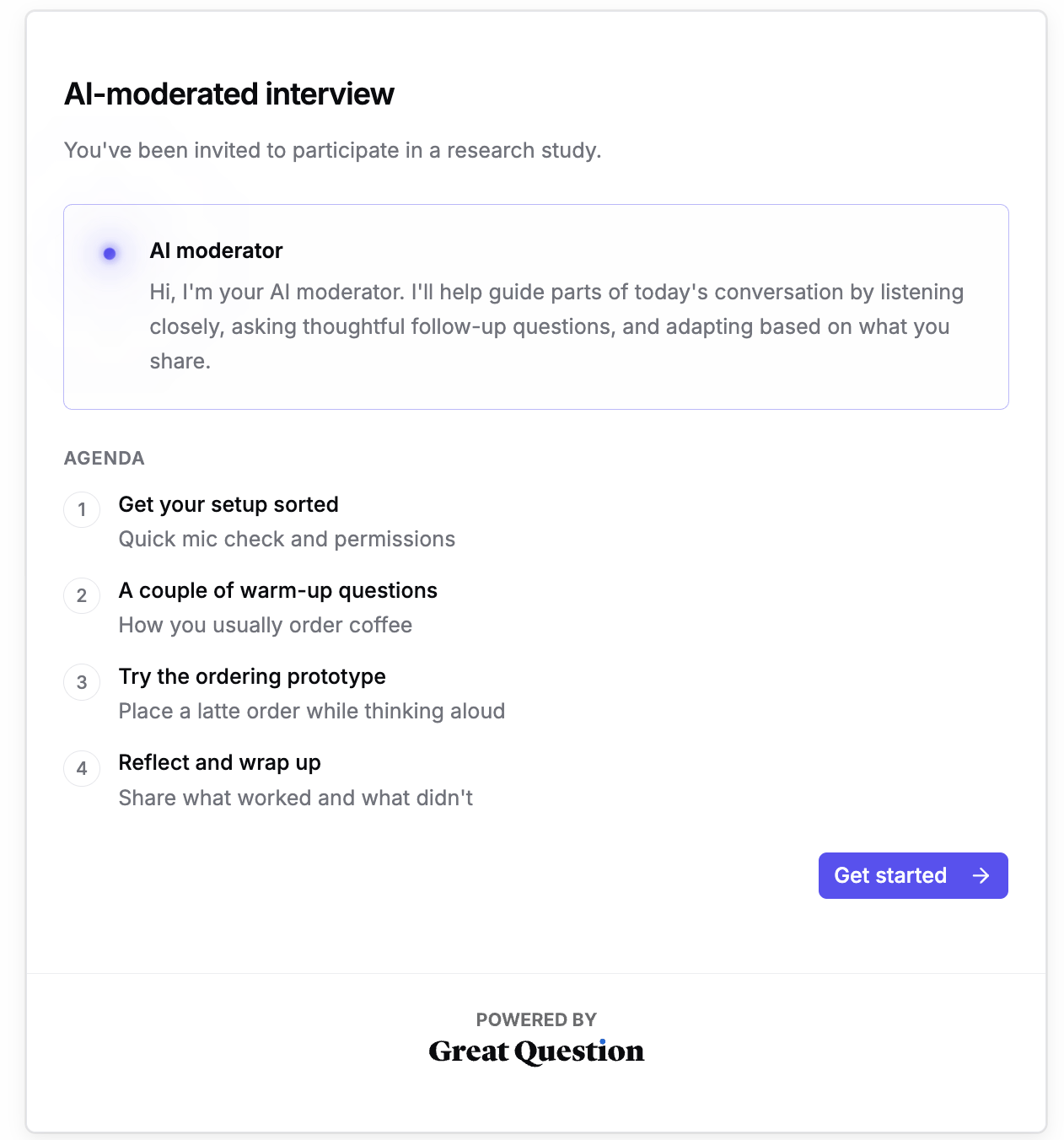
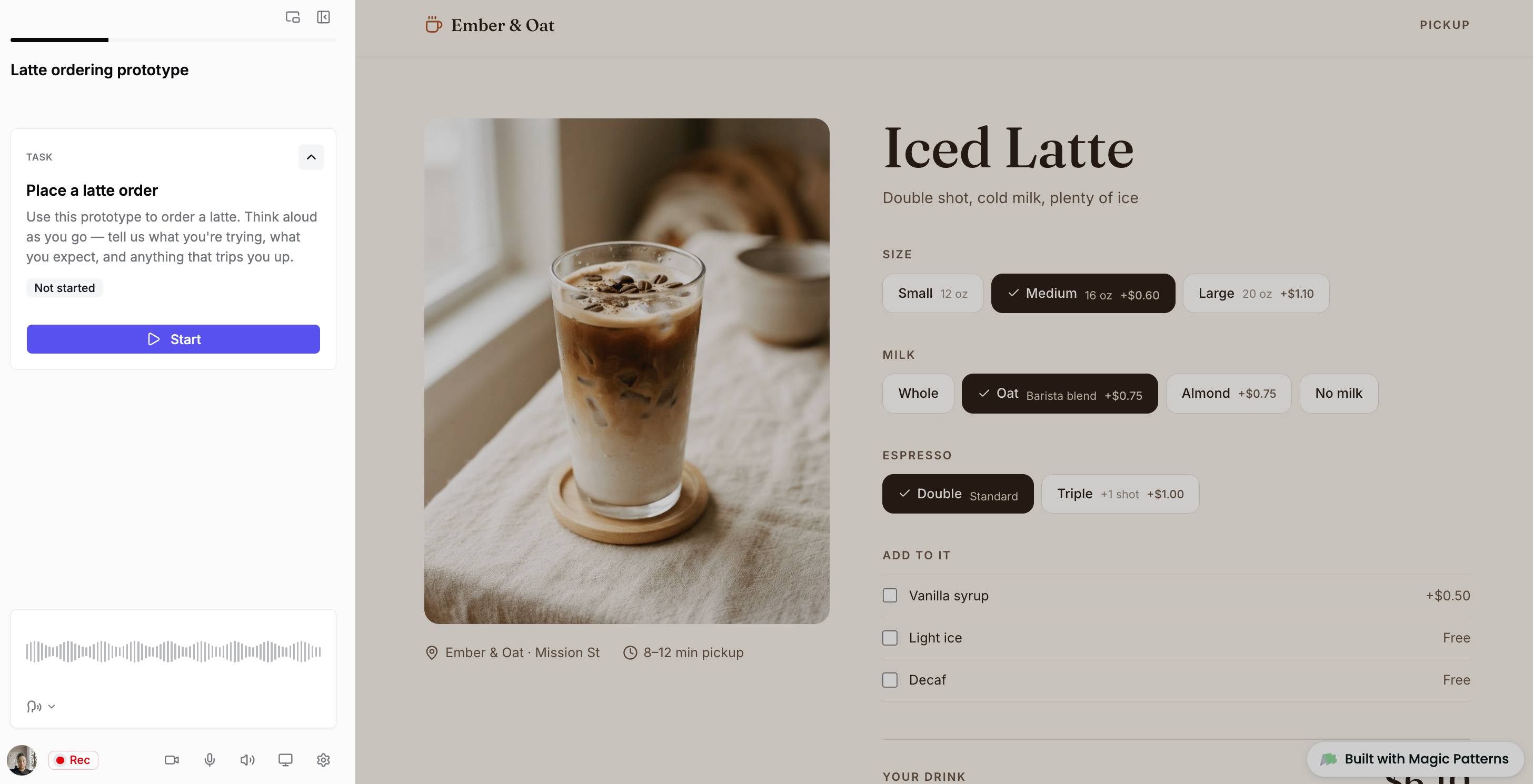
- They finish, and results return to your study. When they’re done, their recording and transcript flow back into Great Question automatically.
Note: Great Question handles who your participants are, recruitment, screening, consent, and incentives. The AI moderation itself is the only part run in the studio, and your participants experience the whole thing as one smooth flow.
Device setup and screen sharing
Before the task starts, participants set up their devices on a single device permissions step. Each device (microphone, camera, and screen share) has its own row:- Participants click Enable on each device. Devices your study doesn’t require are labeled Optional.
- Once a device is on, its row shows it working: a live microphone level, a camera preview, or the shared screen. Participants can pick a different microphone or camera from the row’s device picker.
- If the camera feed looks too dark, for example because a privacy shutter is closed, the row warns: “We can’t see you. Check your camera isn’t covered.”
- Participants can turn a device off with the trash button next to its Enabled badge. Turning off a required device disables Next until they enable it again. A microphone or camera turned off here starts the session muted.
- The prototype embeds in the study. Chrome offers only the current study tab. Switching tabs and sharing the whole screen are turned off.
- The prototype can’t be embedded and opens in a new tab. Chrome opens the full picker on the Window tab, so participants can choose the window that shows the prototype and the moderator.
Devices during the session
Once the session starts, participants control their devices from the bottom bar:- Turning off a required device asks first. If your study requires the camera or screen share, clicking its button opens a confirmation, such as “Turn off your camera?” or “Stop sharing your screen?”. The dialog warns that turning the device off will pause the session until it’s back on. Participants can click Cancel to keep it on.
- Optional devices turn off right away. No confirmation appears for a device your study doesn’t require.
- Muting the microphone never asks. A mute only pauses audio, so the session keeps going.
- Re-enable appears when a click can restore the device, for example a camera that was turned off, a stopped screen share, or a microphone that was reconnected.
- If the participant blocked a device in the browser, the row explains how to allow it again from the browser’s site settings (the lock icon next to the URL).
- Continue becomes available only once every required device is back on. Participants click it to resume where they left off.
Manage Your Study After Publishing
Setup
- Plan — Adjust participant limits, incentives, study attributes, segments, and more.
- AI Moderated Interview — View the outline (including the prototype/website URL) and jump back into the studio to edit.
- Incentives (if applicable) — Manage incentive settings.
- Screener (if applicable) — Edit questions or update logic.
- Emails — Customize participant-facing communications.
- Pages — Update the Landing Page and Screener Disqualification Page.
- Automations — Send invitation and task reminders after 24 hours.
- Notifications — Choose which email alerts to receive.
Execution
- Participants — Add candidates, track progress, and manage status.
- Recruitment Requests (if applicable) — Manage recruit requests.
- Stats — View email performance metrics.
- Screener Responses (if applicable) — Review responses to determine eligibility.
Results
- Summary — Open the AI-generated study analysis report in the studio. This tab appears once at least one participant has completed a session. The report analyzes completed sessions only; counts around it, such as total invitations sent and sessions in progress, can include partial participations. See Read the Study Analysis Report for the full details.
- Tags — Organize study and global tags.
- Synthesis — Group highlights to identify themes.
- Repository — Access recordings and transcripts, the same place you’d find any other session recording. From there, you can watch, read, tag, clip, and analyze exactly as you do today.
How the Studio Works
The studio isn’t a form to fill in, it’s a conversation, the same one used for AI Moderated Interviews. Describe what you want in the chat beside the canvas, or upload a research guide, and the chat builds or edits the task directly. Changes land on the canvas immediately, there’s no separate save step. See Build and Edit Your Study in the Studio for everything the chat can change, how follow-up questions work, how to start from an uploaded research guide, and what the chat can’t do.The Studio’s Four Tabs
- Setup — the canvas: the outline of steps participants go through (device permissions, the prototype or website task, any closing questions). This is what the chat builds and edits.
- Responses — each participant’s session as it completes, one response at a time, the raw record behind the study.
- Analysis — every completed session aggregated question by question, grouped by prototype test, with task analysis and highlight reels. See Review Results Question by Question below.
- Report — the full AI-generated study analysis report, once at least one session is complete. See Read the Study Analysis Report for the full details.
Review Results Question by Question
The studio’s Analysis tab aggregates completed sessions question by question. It works the same way as for an AI Moderated Interview — an outline rail, per-question aggregates, report themes and a highlight reel under open-ended questions, an answer browser behind each question’s View answers link, and a Filter control — with a few additions specific to prototype tests:- Grouped by prototype test. The outline rail and the question rows follow your test’s structure: the prototype test heads the run of steps asked inside it, those steps indent under it, and the rows use the same labels as the Setup tab.
- Completion counts. The prototype test and each task show how many participants completed them, as X of Y completed.
- Task analysis. Each task shows an AI-generated What we learned section: a summary and findings drawn from every completed response, each finding backed by the sources it came from. Click a finding’s source to open that response. When new sessions come in and the report regenerates, the previous completed analysis stays visible until the new one finishes.
- Task highlights. When a task’s findings have playable recordings behind them, a highlight reel plays those moments as one continuous, chaptered video, the same player as a question’s highlight reel.
- What participants did in each step. Each step in a prototype test lists the observed participant behavior for that step, attributed by response number. Click an entry to open the full response it came from.
- Answers to a task’s questions. A task’s View answers control opens the answer browser for the follow-up questions asked inside it. When a task holds more than one question, the control lists them so you pick which to browse.
- Filter by prototype test. In addition to the type, answered, and themes facets, the Filter control has a Prototype test facet that narrows the tab to one test and the steps inside it.
Best Practices
Give your research goal real context before opening the studio. The more specific your goal, the better the guided creation flow’s first draft of questions will be. Always preview before publishing. Previews run the live AI moderation exactly as a participant will experience it, and don’t count toward your results, there’s no reason not to run through it more than once. Treat the studio as the source of truth for the prototype URL and the moderator’s questions. Editing happens there, not in Great Question directly; Great Question always mirrors the latest synced version.Troubleshooting
Frequently Asked Questions
Do participants know they’re talking to an AI?Yes, it’s mentioned where they reach the landing page. Where do my participants give consent — and where does the task happen?
Both are part of one smooth flow for the participant. They open your invite in Great Question and give consent there (with your usual recruitment, screener, and incentive settings), then move straight into the AI-moderated task without any extra sign-in. Great Question handles participant identity, consent, recruitment, and incentives; the AI moderation itself runs in the studio. Their recording and transcript come back into your Great Question study automatically. Can I see the test before I launch? Yes, use Preview in the studio. Previews don’t record or save results, so you can test as many times as you like. Will my recordings and transcripts work like my other studies? Yes. They land on each participant’s record in your study, with a speaker-labeled transcript, ready for your usual analysis, tagging, and clipping. What happens if a participant drops off partway through? Only completed sessions are kept. If a participant abandons and retakes the study, they start a fresh session. Can I edit the test after authoring it? Yes, click Open studio from the study’s AI Moderated Interview step anytime. Where can I see every answer to one question at once?
On the Analysis tab in the studio, which aggregates completed sessions question by question, grouped by prototype test, with task-level “What we learned” analysis and a View answers browser for each question. See Review Results Question by Question. What can I ask the studio chat to do?
Anything involved in building or refining the task: adding, removing, or reordering questions and tasks, changing the prototype or website URL, setting follow-up limits, or giving the moderator instructions, including on tone. It shows its reasoning before applying a change and confirms exactly what it did. See Build and Edit Your Study in the Studio for the full list. Does this work with any prototype or website? Any publicly accessible URL should work, Figma prototypes, prototypes hosted on Magic Patterns or Vercel, or your own live site. Since this is a beta, check with your Customer Success Manager if you run into a prototype source that doesn’t work as expected.
Still need help? Contact us at support@greatquestion.co — median response time is 19 minutes during support hours.